
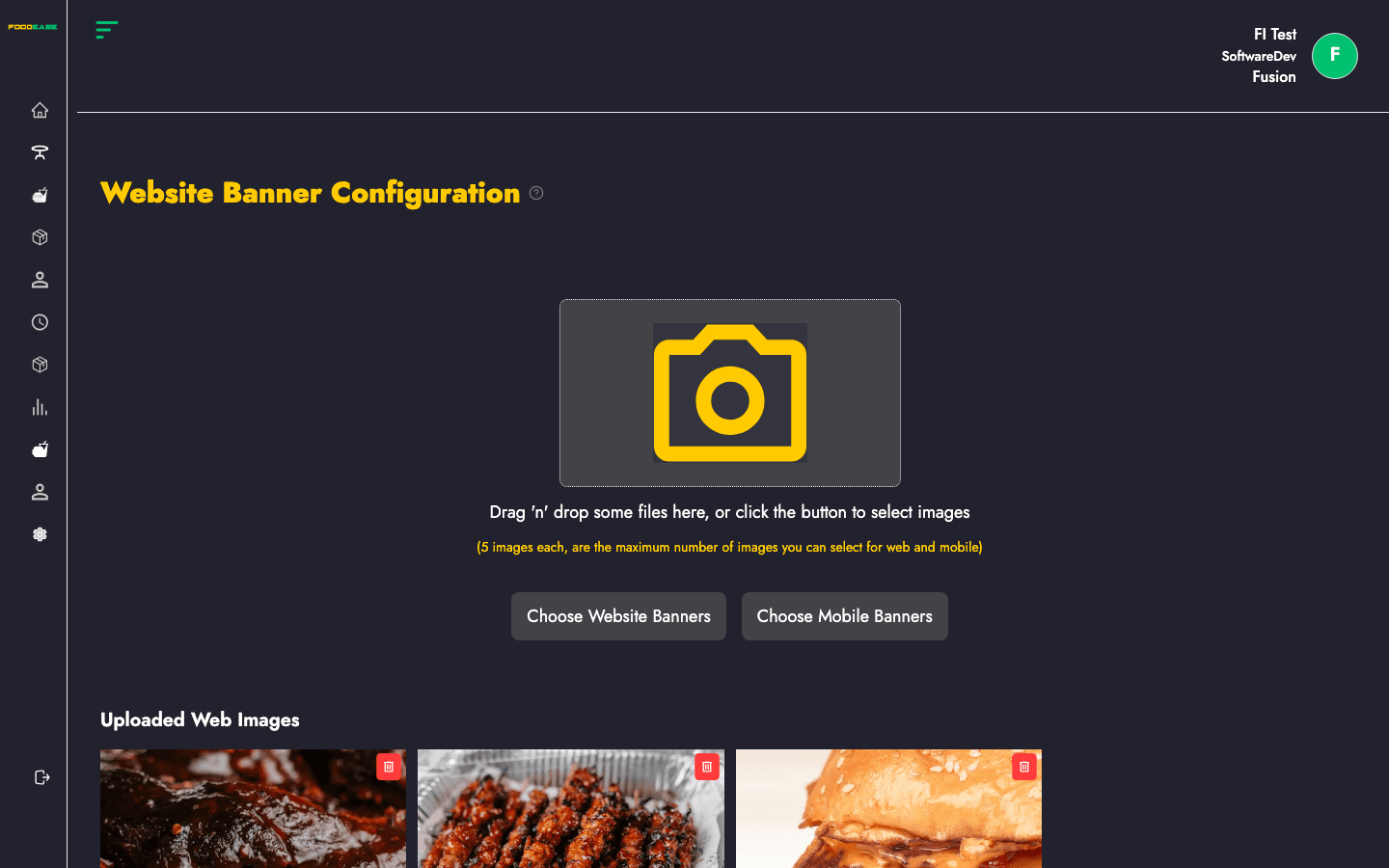
Website Banners manages carousel or hero images on your restaurant website — separate sets for desktop and mobile viewports.
Who can use this page?
You need Edit Restaurant (CAN_EDIT_RESTAURANT) and Has Website enabled on Restaurant Info.
How to open Website Banners
- Log in to FoodEase Office.
- In the sidebar, expand Restaurant Settings.
- Click Website Banners.
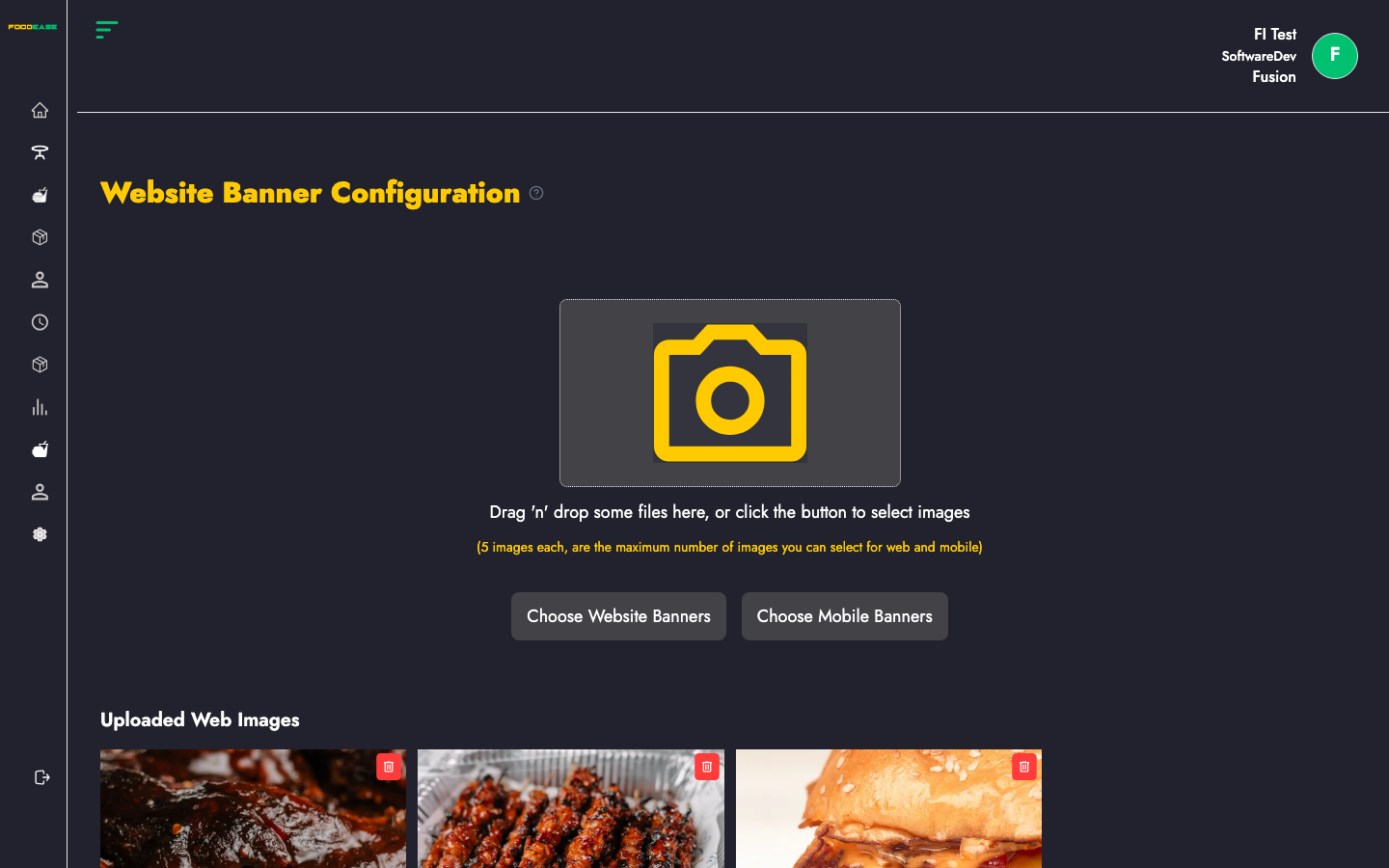
Page overview
| Section | Description |
|---------|-------------|
| Desktop banners | Images shown on larger screens |
| Mobile banners | Images optimised for phones |
| Upload / drag-and-drop | Add new banner files |
| Delete | Remove an existing banner |
| Save | Persist changes to your restaurant profile |
Add banners
- Use the upload area or drag image files into the drop zone for desktop or mobile.
- Preview thumbnails as they are added.
- Click Save to upload and store banners on your restaurant record.
Supported formats follow the on-screen upload hints (typically common image types such as JPG and PNG).
Remove banners
- Click Delete on a banner thumbnail.
- The image is marked for removal.
- Click Save to confirm deletion from storage and your website configuration.
Tips
- Use wide images for desktop and taller crops for mobile so banners display cleanly on both layouts.
- Keep file sizes reasonable for faster website load times.
- Pair banners with Featured Items to drive attention to key menu products.
Related guides
- Restaurant Info — enable Has Website
- Featured Items — highlight menu items below banners