
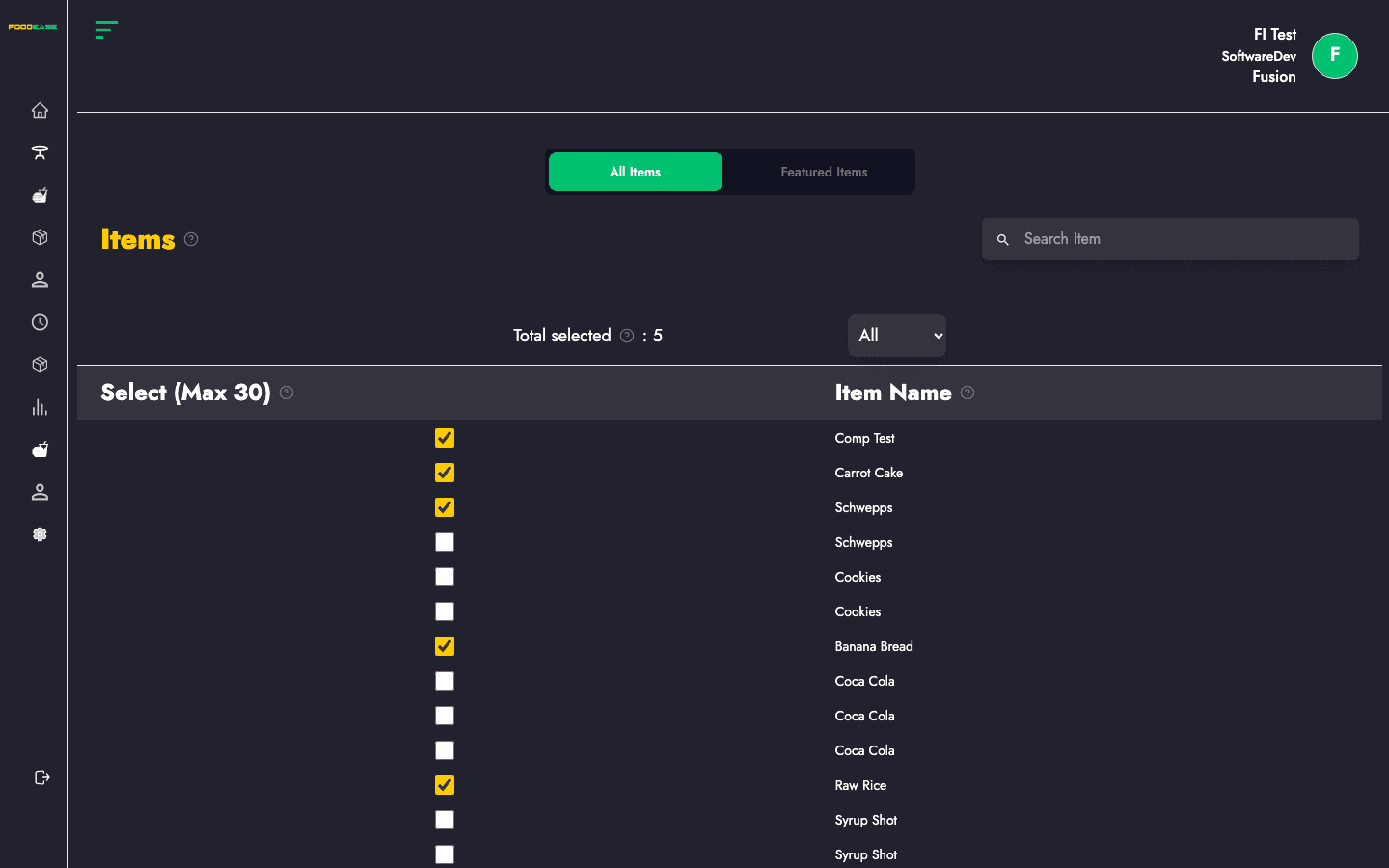
Featured Items controls which menu products appear in the featured section of your restaurant website — ideal for promotions, new launches, or bestsellers.
Who can use this page?
You need Edit Restaurant (CAN_EDIT_RESTAURANT) and Has Website enabled on Restaurant Info.
How to open Featured Items
- Log in to FoodEase Office.
- In the sidebar, expand Restaurant Settings.
- Click Featured Items.
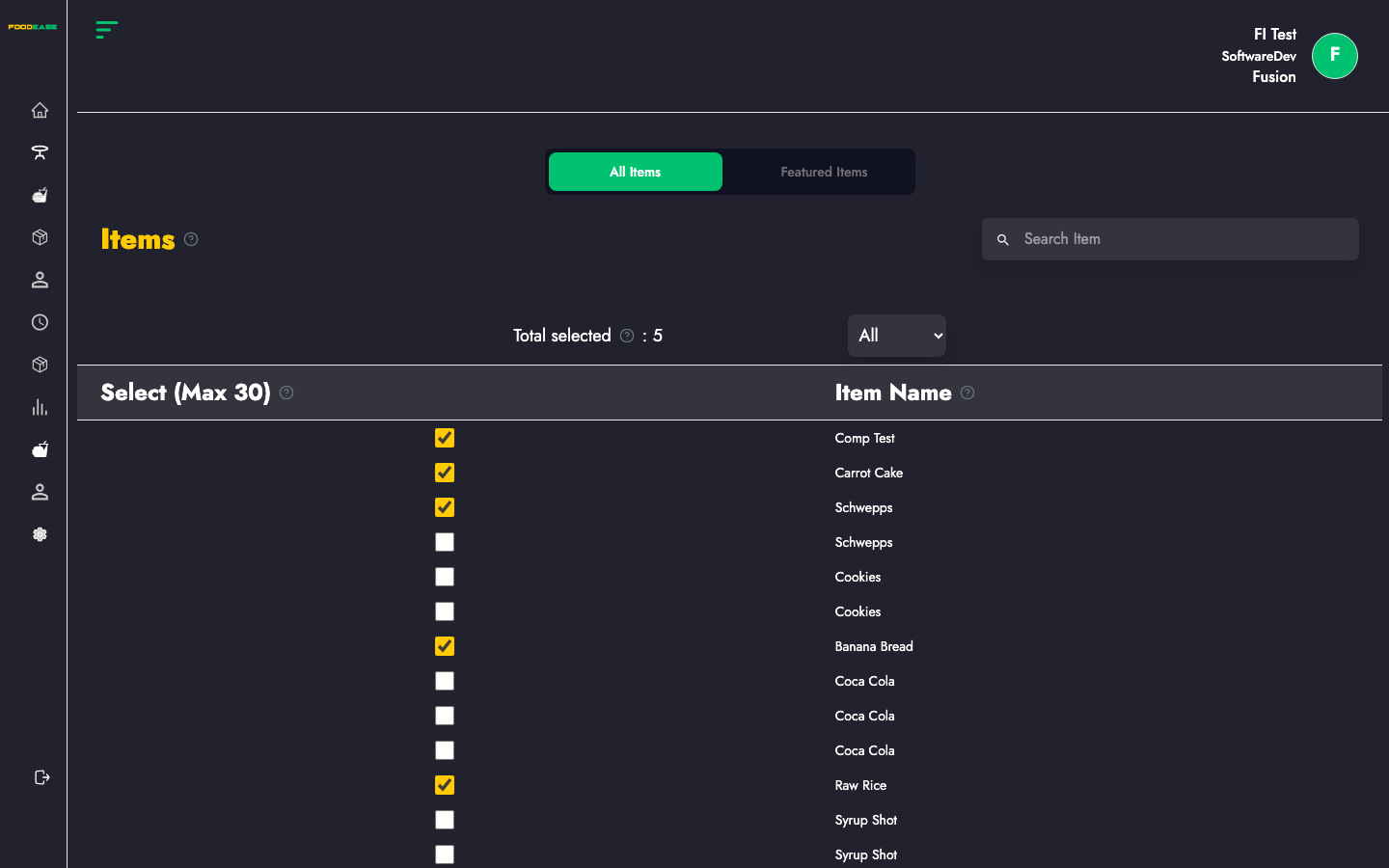
Page overview
Two tabs at the top:
| Tab | Purpose |
|-----|---------|
| All Items | Browse and search your menu to add items to the featured list |
| Featured Items | Review and configure items already marked as featured |
Add featured items (All Items tab)
- Stay on All Items.
- Type an item name in Search Item and press Enter to search.
- Select items from the table to add them to your featured set (use the on-screen controls per row).
Only active menu items from Items appear here.
Manage featured items (Featured Items tab)
- Switch to Featured Items.
- Review the current featured list.
- Adjust ordering, labels, or remove items using the featured item form controls.
- Save changes to update what visitors see on your website.
No items found
If search returns nothing, confirm the item exists under Items and is spelled correctly.
Related guides
- Create an Item — add new products to feature
- Website Banners — pair visual banners with featured products
- Restaurant Info — enable Has Website