
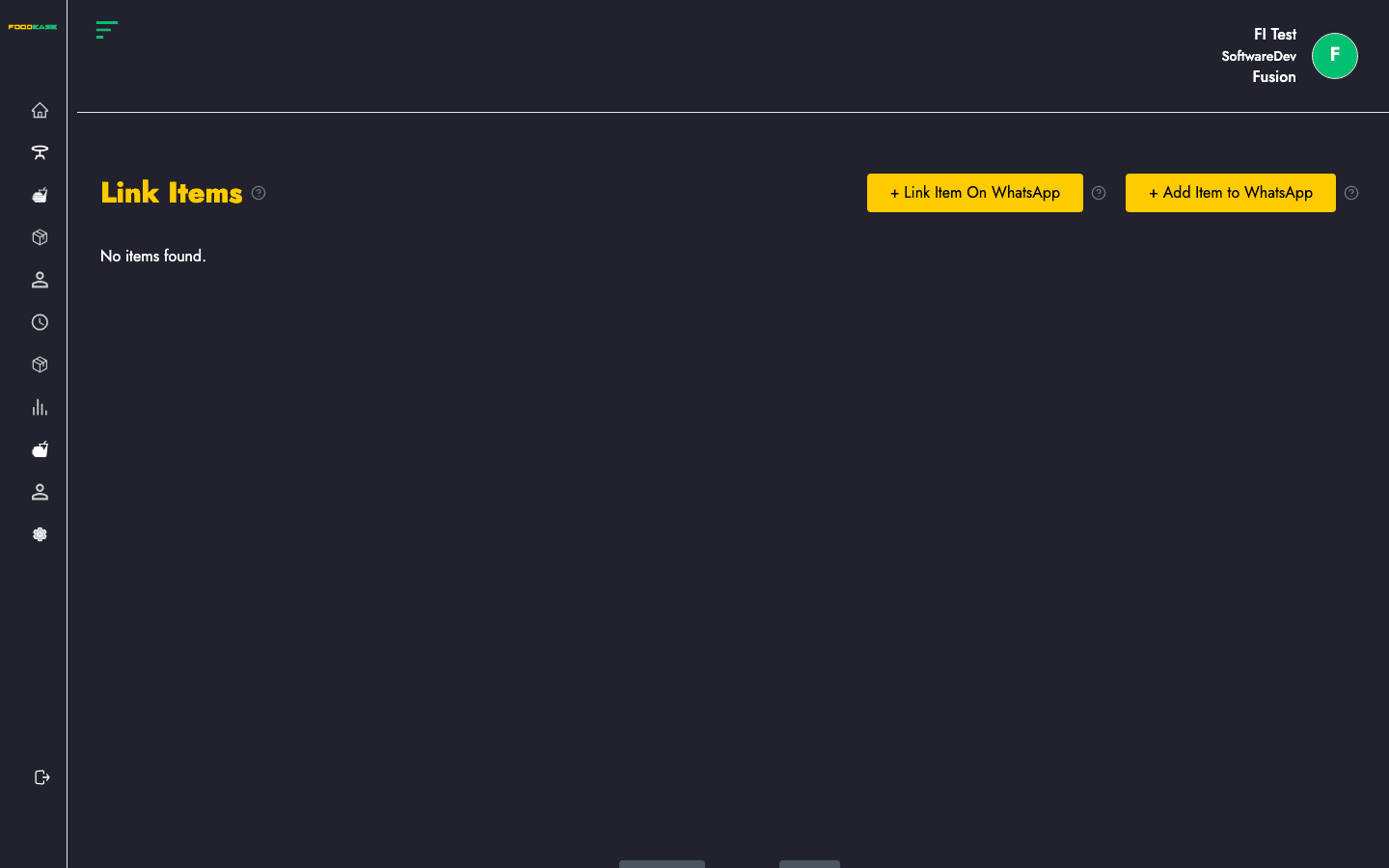
Link Item keeps your WhatsApp bot menu in sync with FoodEase. Push items to the WhatsApp catalog so customers can order through chat.
Who can use this page?
You need Edit Restaurant (CAN_EDIT_RESTAURANT) and Has Website enabled on Restaurant Info.
How to open Link Item
- Log in to FoodEase Office.
- In the sidebar, expand Restaurant Settings.
- Click Link Item.
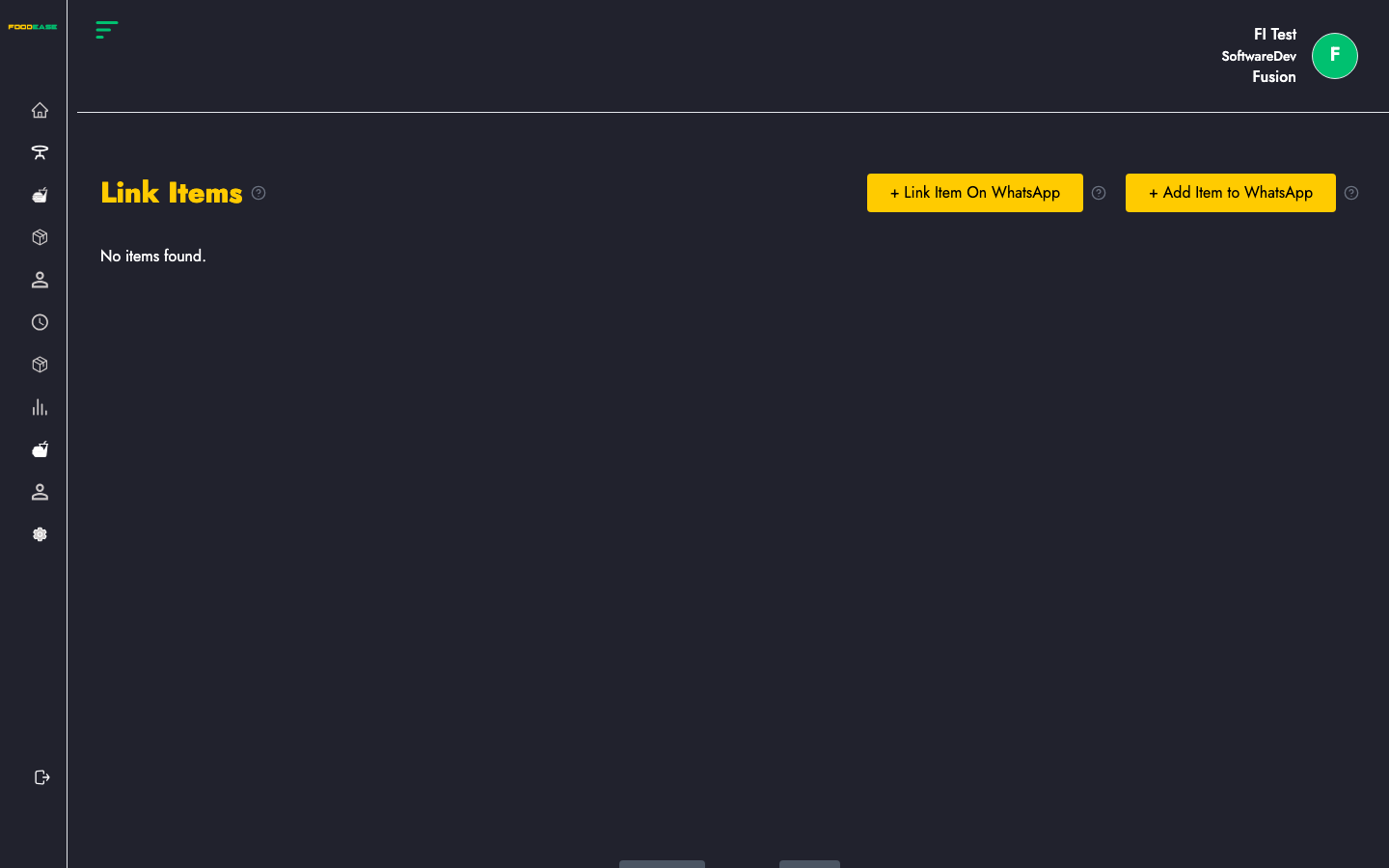
Page overview
| Control | Description |
|---------|-------------|
| Link Item On WhatsApp | Sync selected or all eligible items to the WhatsApp catalog |
| Add Item to WhatsApp | Shortcut to Items to create new products |
| Item grid | Menu items currently linked or available to link |
| Pagination | Move through large catalogs (30 items per page) |
Sync items to WhatsApp
- Click Link Item On WhatsApp to push items from FoodEase to the WhatsApp bot catalog.
- Wait for the success notification.
- Review the grid — linked items appear as cards with item names.
If sync fails, check that Whatsapp Business shows Active status.
Add new items
Click Add Item to WhatsApp to open the Items page. Create or edit products there, then return to Link Item and sync again.
Pagination
Use Previous and Next at the bottom when you have more than one page of linked items.
Related guides
- Whatsapp Business — bot status and templates
- Create an Item — add products before linking
- Items — full menu catalogue