
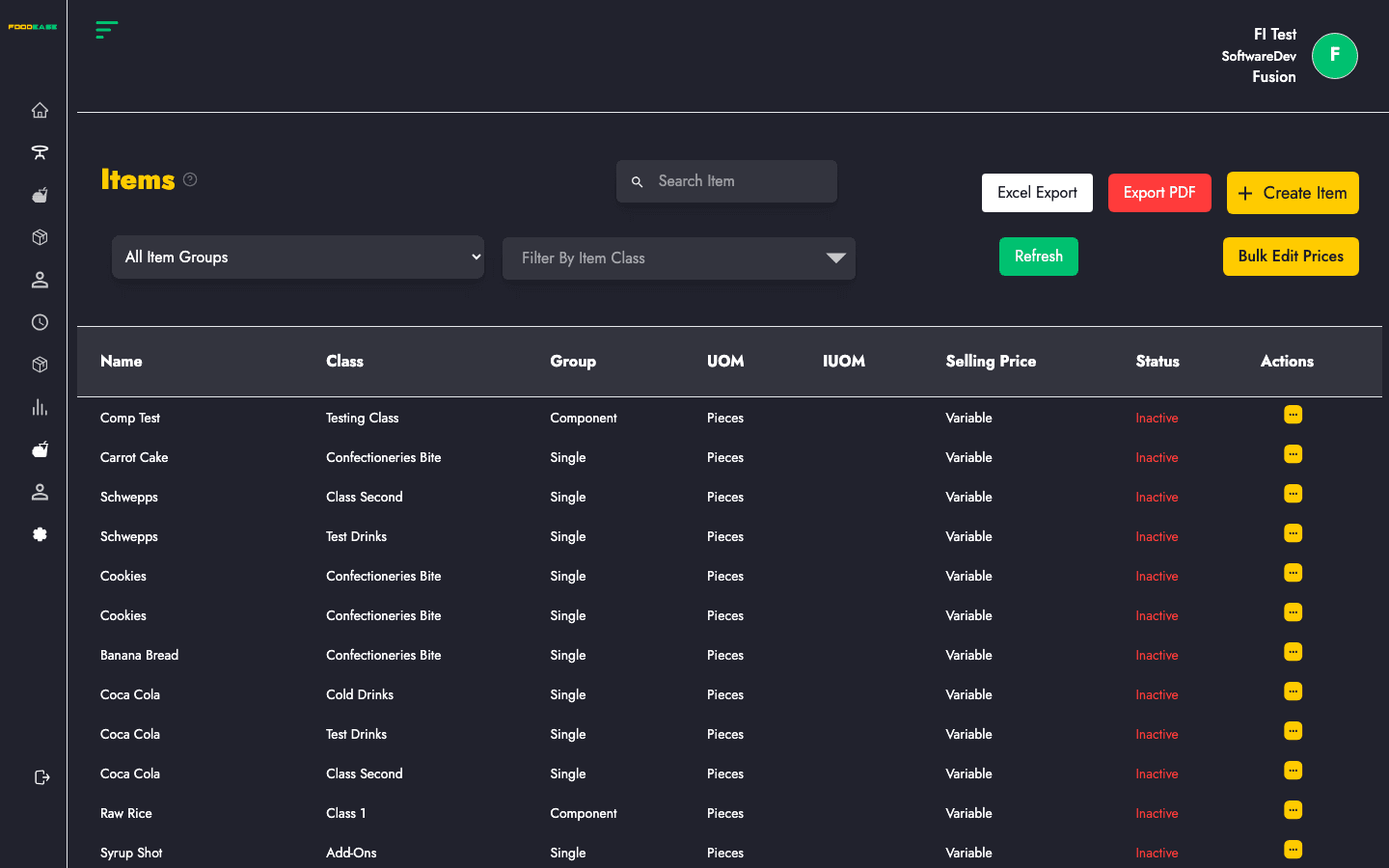
The Items page is your main menu catalogue. Every product you sell — food, drinks, ingredients, combos — is managed here. Items are organised by class and group (Single, Recipe, Package, and more).
Who can use this page?
Staff need at least one of: Create Item, Edit Item, or Toggle Item permissions.
How to open Items
- Log in to FoodEase Office.
- In the sidebar, expand Items.
- Click Items.
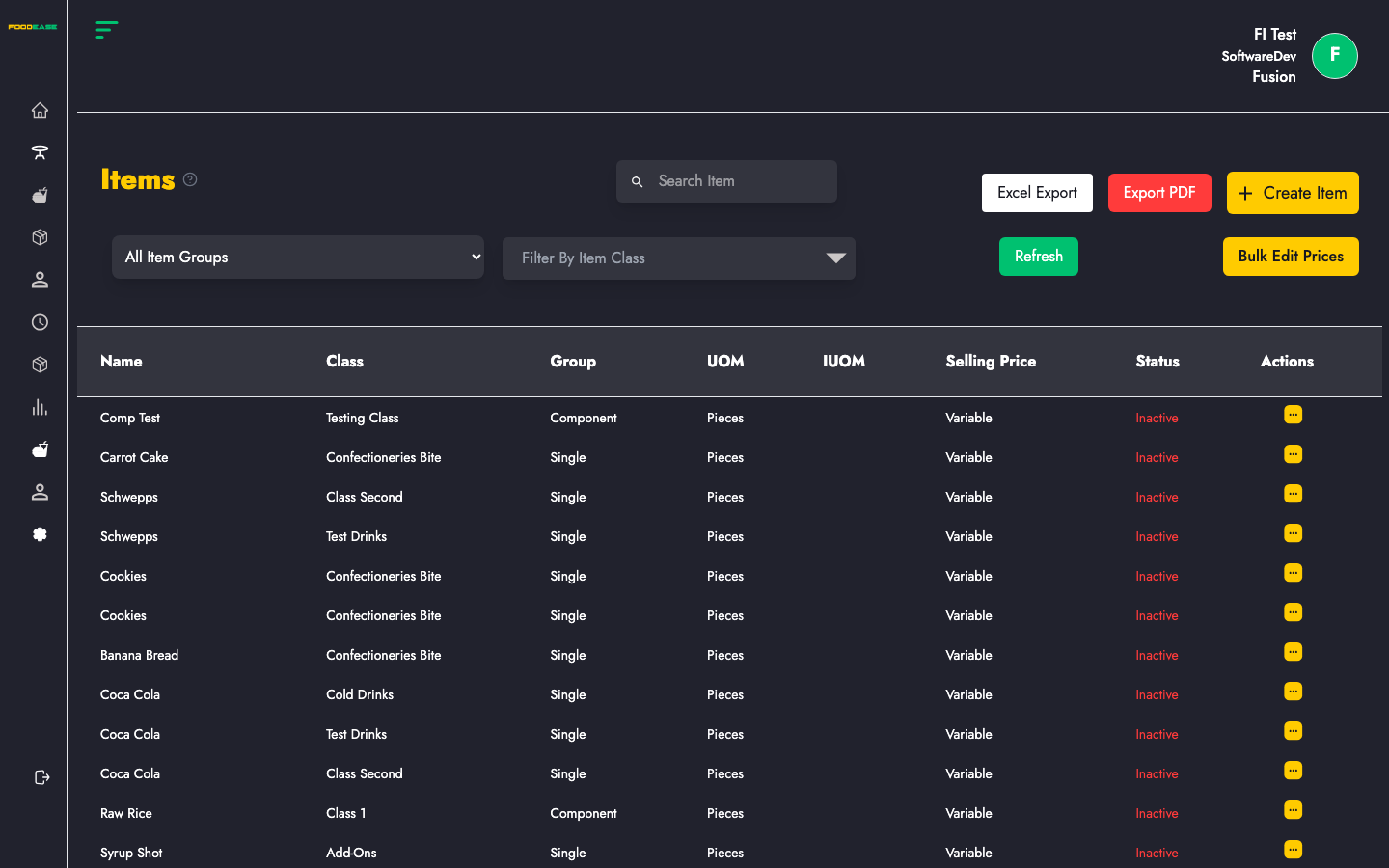
Page overview
| Area | What it does |
|------|----------------|
| Search Item | Find items by name (press Enter to search) |
| All Item Groups filter | Filter by Single, Recipe, Package, Parent, Component, or Sundry |
| Item Class filter | Narrow results to one class |
| Create Item | Open the full item creation form |
| Export | Download your item list |
| Refresh | Reload the latest data from the server |
| Bulk Price | Update prices for multiple items at once |
| Table columns | Name, Class, Group, UOM, IUOM, Selling Price, Status, Actions |
Item groups explained
| Group | Typical use |
|-------|-------------|
| Single | A standalone menu product sold as-is |
| Recipe | A dish made from multiple ingredients with a recipe |
| Package | A bundle of items sold together |
| Parent | A base item with variants or child items |
| Component | An ingredient used inside recipes |
| Sundry | Miscellaneous items (napkins, service charges as items, etc.) |
Selling price may show as Variable for groups like Single, Recipe, Component, and Sundry when price is set at order time.
Search and filter items
- Type a name in Search Item and press Enter.
- Use All Item Groups to filter by product type.
- Use the Item Class dropdown to show only items in one category.
- Click Refresh (green button) to reload after changes made elsewhere.
Create an item
See the dedicated guide: Create an Item — full form walkthrough for every item group.
Quick steps:
- Click Create Item (top right).
- Select an Item Group — the form fields change based on the group you choose.
- Complete required fields (common fields include):
| Field | Description |
|-------|-------------|
| Name | Product name shown on POS and receipts |
| Item Class | Category the item belongs to |
| Unit of Measurement | How the item is counted or sold |
| Selling Price | Fixed price (where applicable) |
| Revenue Centres | Locations where the item is sold |
| Preparation Areas | Kitchen stations that receive tickets for this item |
| Tax | Sales tax applied to the item |
| Store Locations | Inventory locations (for stock-tracked groups) |
- Save the item. You return to the Items list with a success notification.
Before creating items: set up Item Class, Unit of Measurement, Revenue Centres, and Preparation Areas.
Edit an item
See Edit & Duplicate an Item for the full edit workflow.
- In the table, open Actions on the item row.
- Click Edit — you are taken to the edit form for that item and group.
- Update fields and save.
The URL format is /dashboard/items/edit-items/{id}?itemGroup={group} — FoodEase opens the correct form automatically.
Duplicate an item
From the edit screen, click Duplicate to pre-fill a new item. See Edit & Duplicate an Item.
Activate or deactivate an item
- Open Actions on the row.
- Choose Toggle to activate or deactivate.
You need Toggle Item permission. Inactive items remain in the system but are hidden from active menus.
Bulk price update
- Filter the list to the items you want to update.
- Click Bulk Price.
- Follow the bulk update wizard to apply new prices.
Use this when adjusting prices across a class or after a menu price change.
Troubleshooting
| Issue | What to try |
|-------|-------------|
| No items shown | Clear filters, press Enter on an empty search, or click Refresh |
| Cannot create item | Ask your admin to grant Create Item permission |
| “Reload items” button appears | The list failed to load — click Reload items |
| Item not on POS | Check item is Active, class has Show on POS, and correct revenue centre is assigned |