
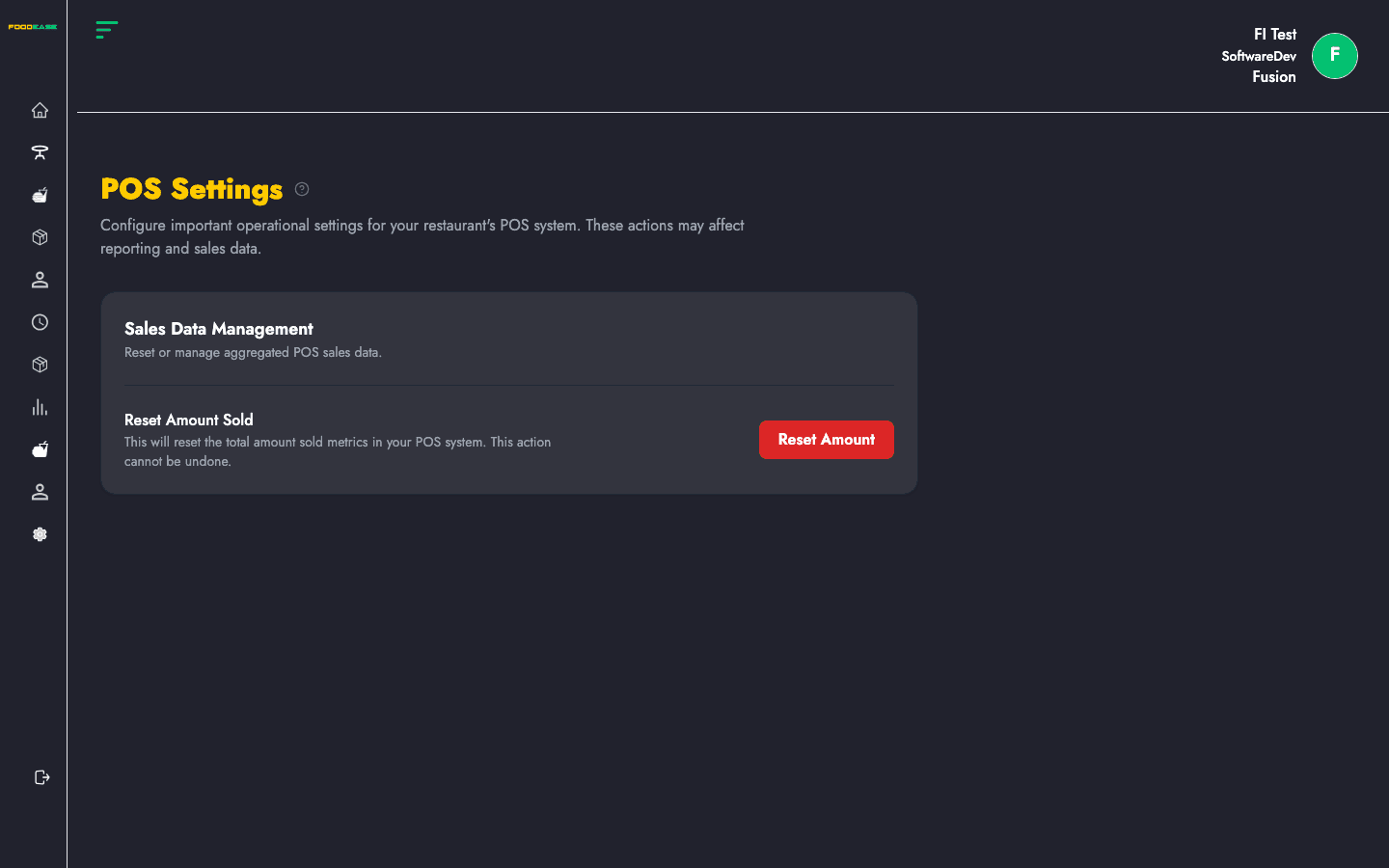
POS Settings holds operational actions that affect your entire POS deployment — currently centred on resetting aggregated Amount Sold metrics.
Who can use this page?
You need Edit Restaurant (CAN_EDIT_RESTAURANT).
How to open POS Settings
- Log in to FoodEase Office.
- In the sidebar, expand Restaurant Settings.
- Click POS Settings.
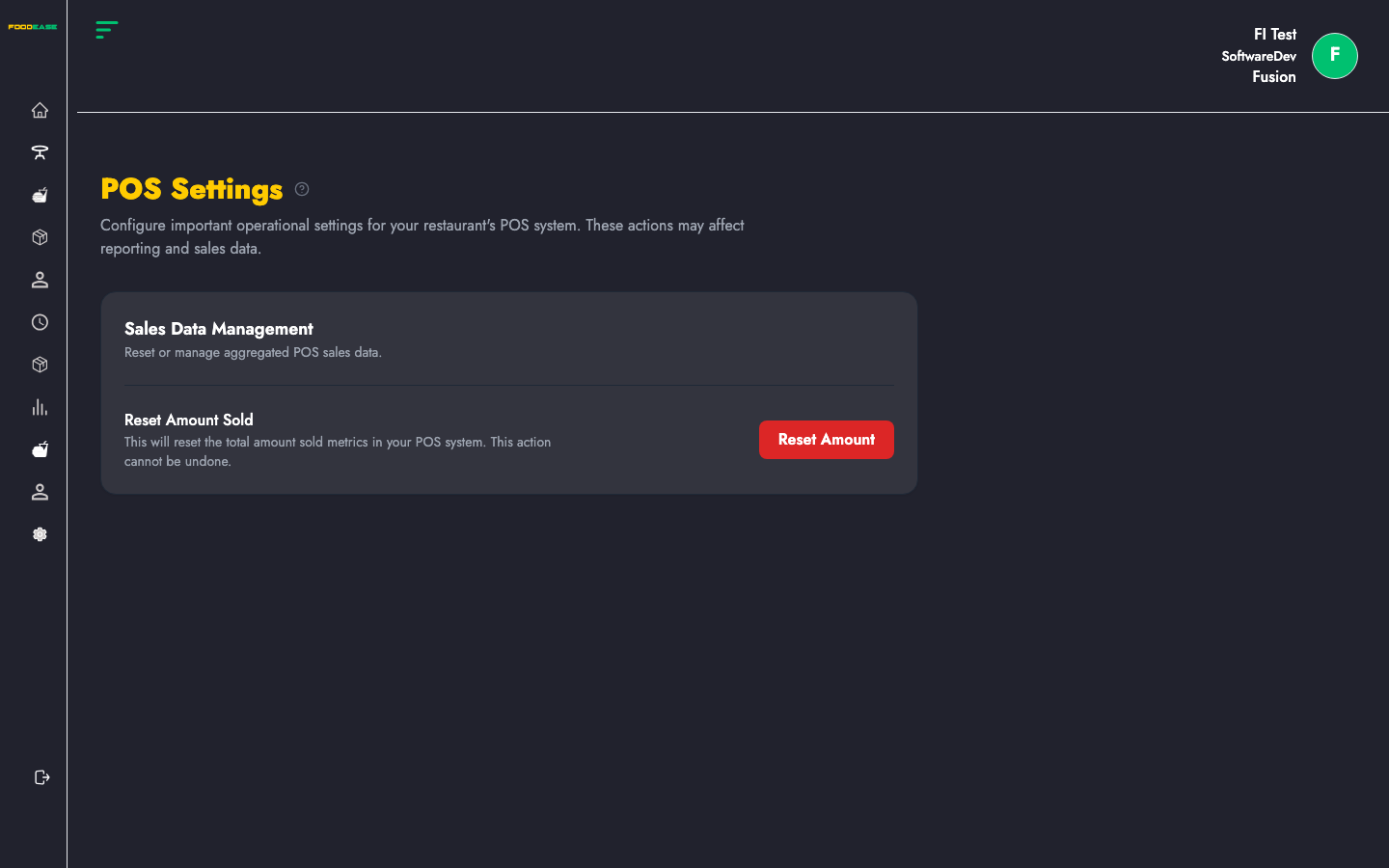
Page overview
| Section | Description |
|---------|-------------|
| Sales Data Management | POS-wide sales metric controls |
| Reset Amount Sold | Clears total amount sold counters on POS |
Reset Amount Sold
This action resets the total amount sold figures tracked in your POS system.
- Read the warning — this action cannot be undone.
- Click Reset Amount Sold.
- Confirm in the modal.
- On success you see Amount Sold has been reset successfully.
Use with caution: Resetting affects reporting and sales counters. Only perform this during a planned maintenance window or when instructed by FoodEase support. It does not delete individual checks or session history.
Related guides
- Sessions — reconcile cashier shifts after operational changes
- Restaurant Info — core POS toggles (KDS, tax, revenue centre switching)
- View All Reports — verify sales data after resets