
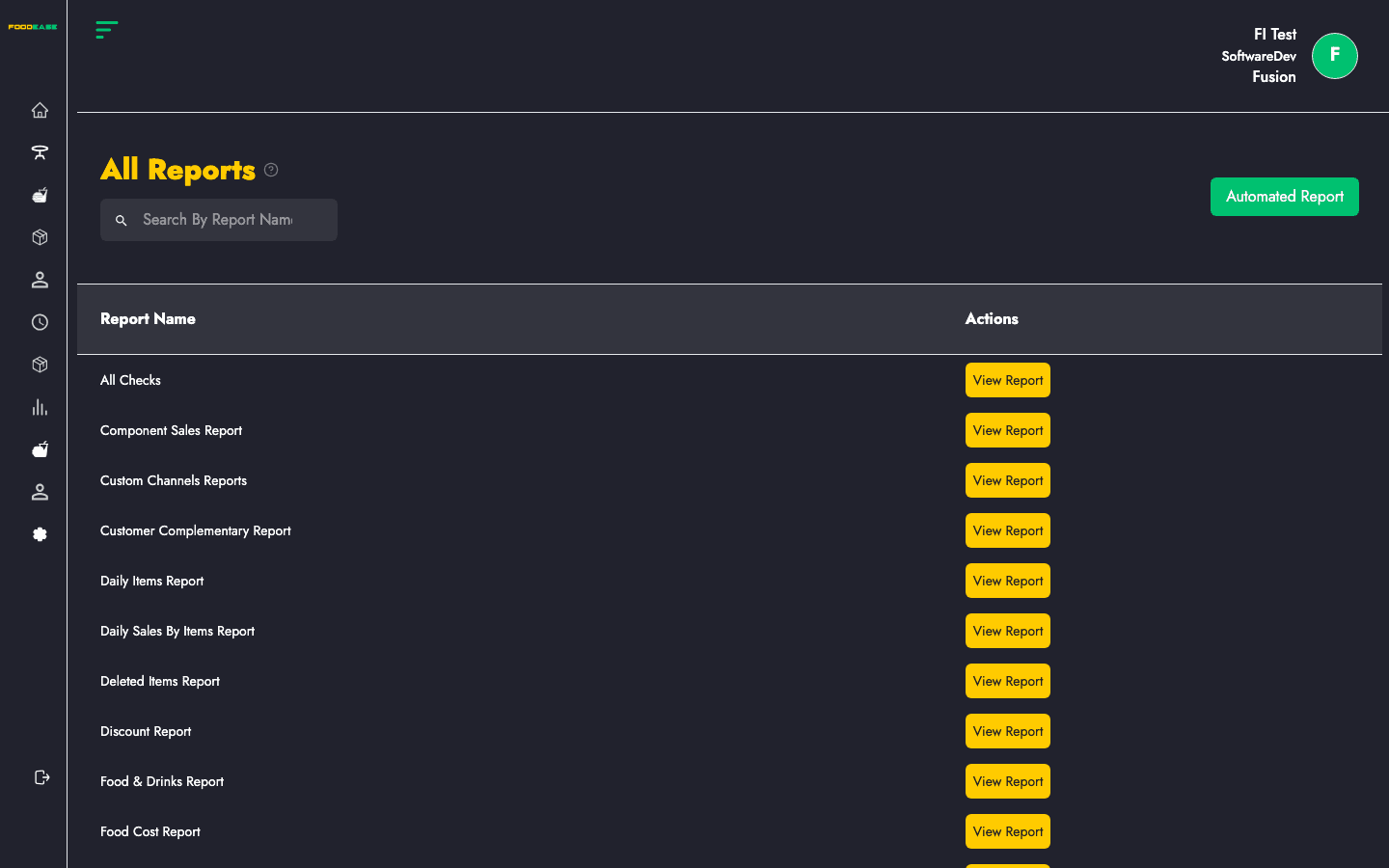
View All Reports is the main entry point for analytics in FoodEase Office. It lists every standard report alphabetically and links directly to each report page.
How to open
- Log in to FoodEase Office.
- In the sidebar, expand Reports.
- Click View All Reports.
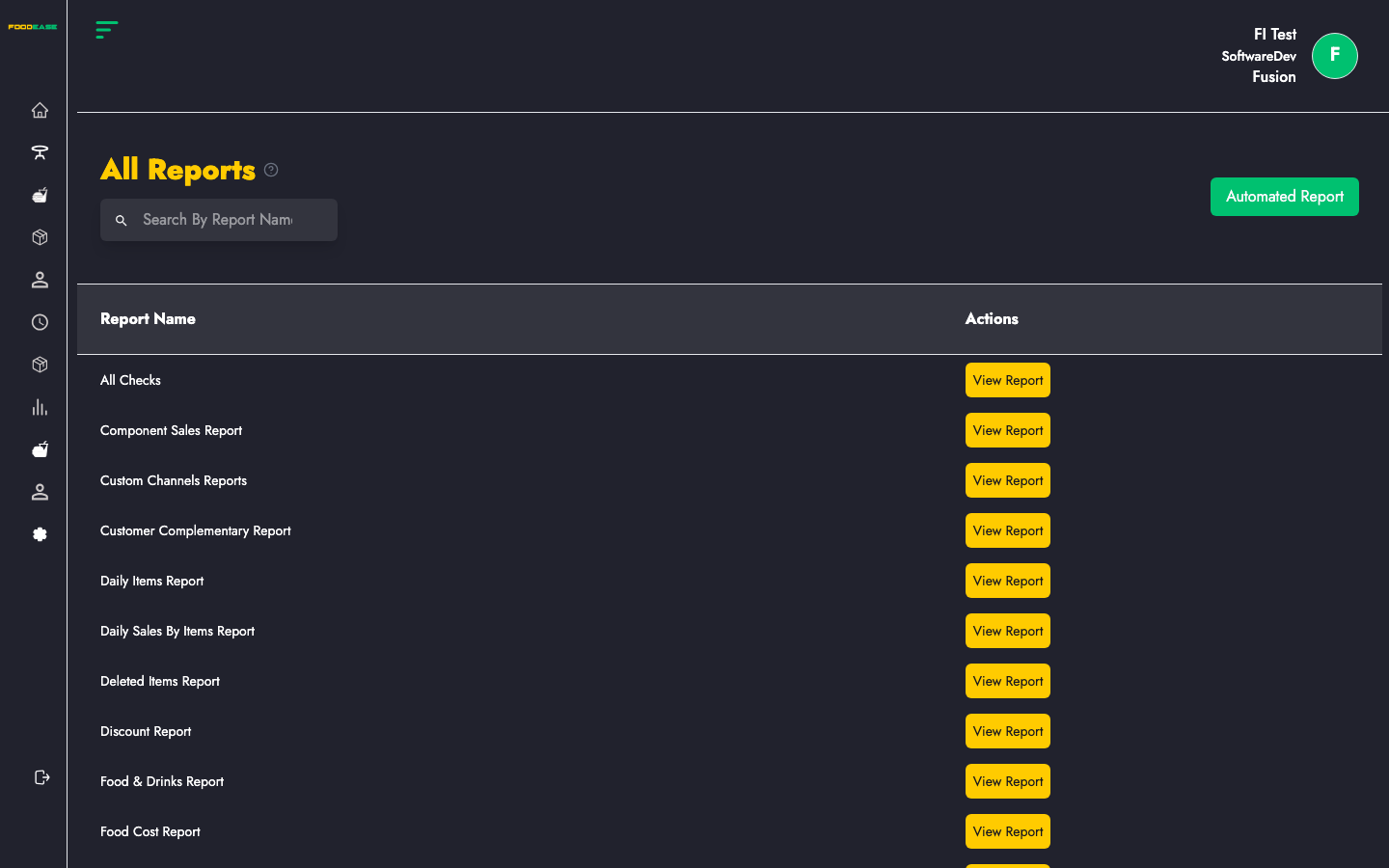
Page overview
| Area | What it does |
|------|----------------|
| Search By Report Name | Filter the list as you type |
| Automated Report (green button) | Opens Automated Reports to schedule email delivery |
| Report table | Report name (link) and View Report button |
Reports are sorted alphabetically by name.
Run any report
- Find the report in the list (search or scroll).
- Click the report name or View Report.
- On the report page, set Date From / Date To and optional Revenue Center.
- Use Print or export actions in the report header when you need a PDF or spreadsheet.
Most reports follow this pattern. Individual guides below explain what each report contains.
Available reports
| Report | Article |
|--------|---------|
| All Checks | All Checks |
| Component Sales Report | Component Sales Report |
| Custom Channels Reports | Custom Channels Report |
| Customer Complementary Report | Customer Complementary Report |
| Daily Items Report | Daily Items Report |
| Daily Sales By Items Report | Daily Sales By Items |
| Deleted Items Report | Deleted Items Report |
| Discount Report | Discount Report |
| Food & Drinks Report | Food & Drinks Report |
| Food Cost Report | Food Cost Report |
| Item Sales Report | Item Sales Report |
| Items By Price List Report | Items By Price List |
| Items Discount Report | Items Discount Report |
| New Item Sale | New Item Sale |
| Online Orders Report | Online Orders Report |
| Operations | Operations |
| Refund Report | Refund Report |
| Revenues By Revenue Centers Report | Revenues By Revenue Centers |
| Revenue Line Report | Revenue Line Report |
| Sales By Individuals | Sales By Individuals |
| Sales By Items | Sales By Items |
| Sales Metrics Report | Sales Metrics Report |
| Sales Mix Summary | Sales Mix Summary |
| Service Type Report | Service Type Report |
| Staff Complementary Report | Staff Complementary Report |
| Voided Report | Voided Report |
| Waste Report | Waste Report |
| Work Period Report | Work Period Report |
Schedule recurring reports
Click Automated Report on this page (or open Automated Reports from the sidebar) to email reports on a schedule.
Tips
- Use a narrow date range first to verify data, then expand for month-end.
- Cross-check cashier totals with Sessions.
- Inventory-heavy reports (e.g. Waste Report) pair with Inventory Overview.