
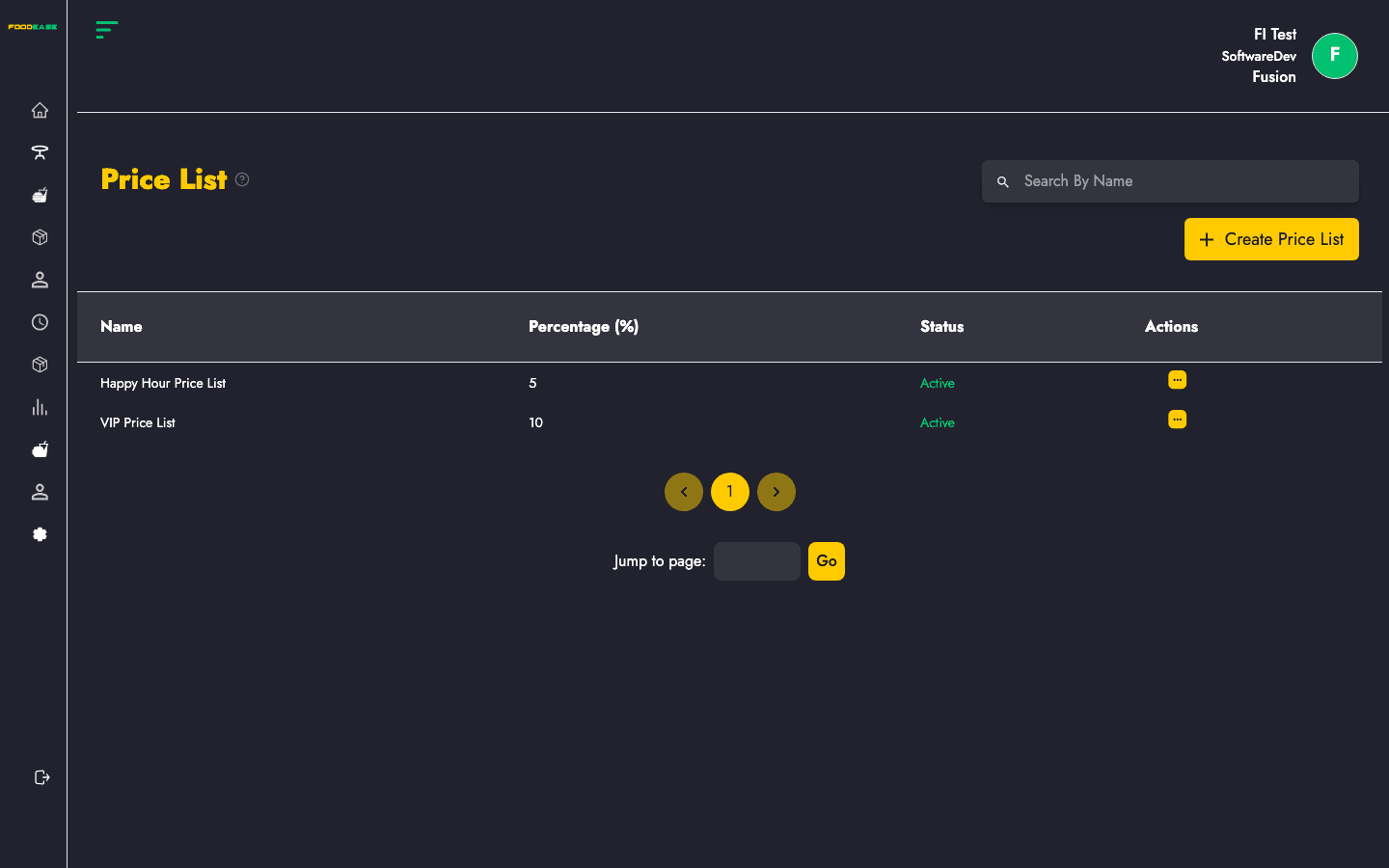
A Price List adjusts selling prices by a percentage across all items. This is commonly used for delivery aggregators that charge a commission — for example, a Glovo +30% list increases every item price by 30% when that list is applied.
Who can use this page?
Users with access to Tables configuration in FoodEase Office.
How to open Price List
- Log in to FoodEase Office.
- Sidebar → Tables → Price List.
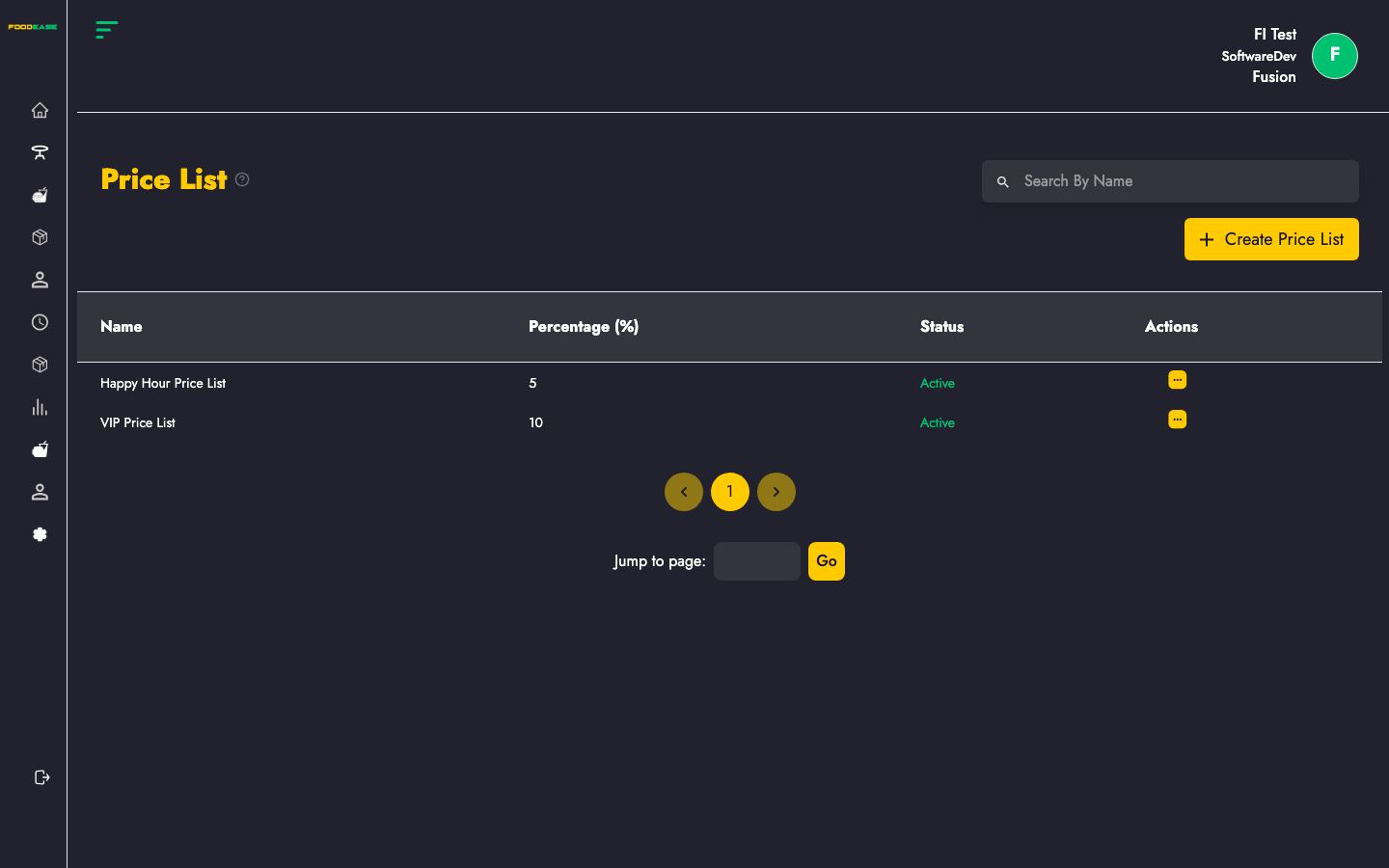
Page overview
| Column | Description |
|--------|-------------|
| Name | Price list label (e.g. Delivery +25%) |
| Percentage (%) | Mark-up or adjustment rate |
| Status | Active or Inactive |
| Actions | Edit |
Create a price list
- Click Create Price List.
- Enter:
- Name — descriptive name for your team
- Percentage — numeric adjustment (e.g.
30for +30%)
- Save.
Edit a price list
- Open Actions → Edit.
- Update the name or percentage.
- Save.
Note: Unlike some other pages, price lists on this screen are edited via the actions menu — there is no separate toggle on the list view in all cases; check your row actions for available options.
Search
Use Search By Name to find a price list quickly.
Example use cases
| Scenario | Price list |
|----------|------------|
| Delivery app takes 30% | Create Channel X +30% at 30% |
| Happy hour discount | Work with your FoodEase admin on negative or promotional lists if supported |
| Different branch pricing | Combine with revenue centre configuration on items |
Best practices
- Name lists after the channel or rule (Uber +25%, In-house menu).
- Document which channel uses which list so cashiers and managers stay aligned.
- After creating a list, verify a sample item price on POS before going live.