
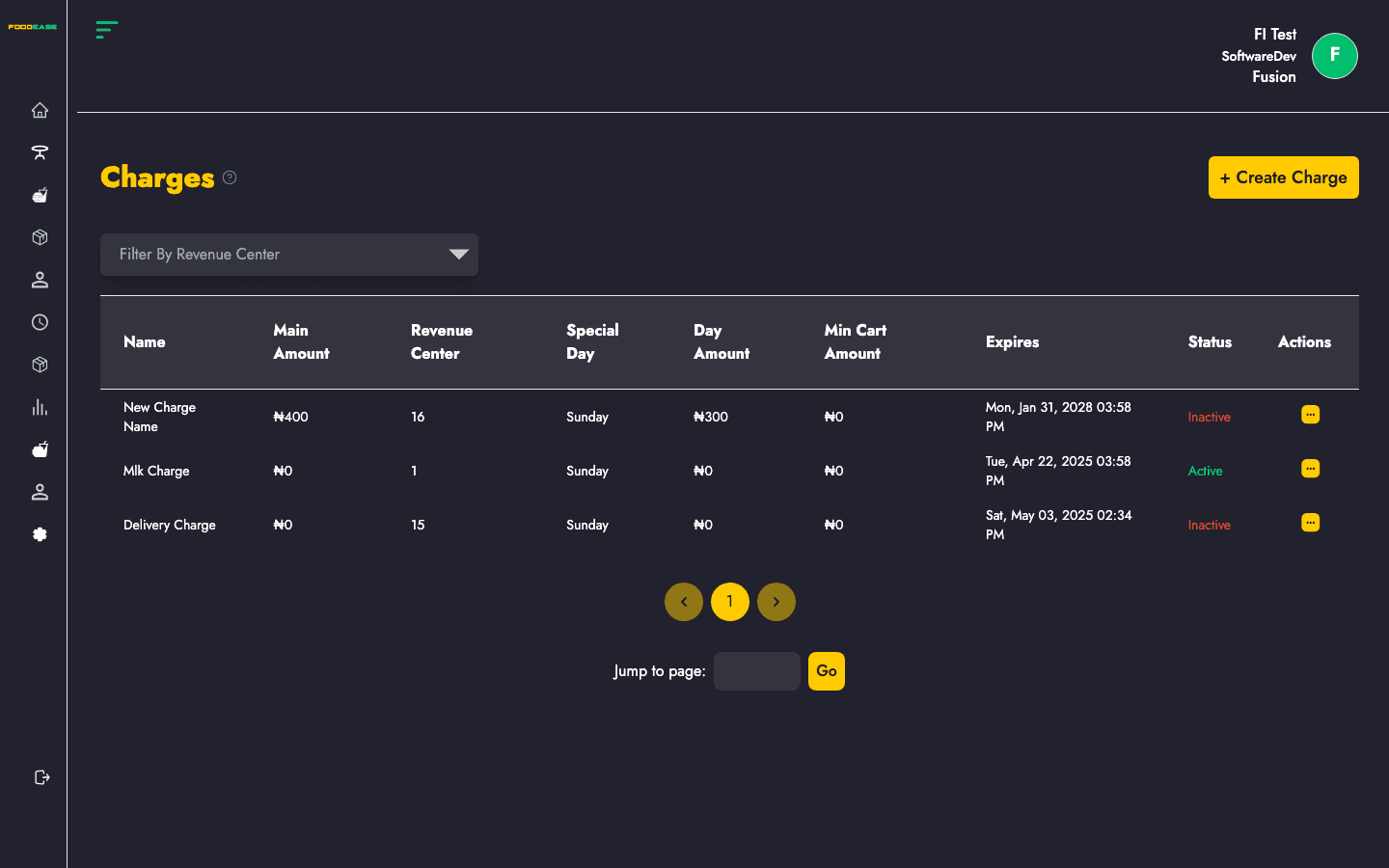
Charges are fees added to orders — service charge, packaging fee, holiday surcharge, or location-specific fees. Each charge can target specific revenue centres, amounts, and optional day-based rules.
Who can use this page?
Users with access to Tables configuration.
How to open Charges
- Log in to FoodEase Office.
- Sidebar → Tables → Charges.
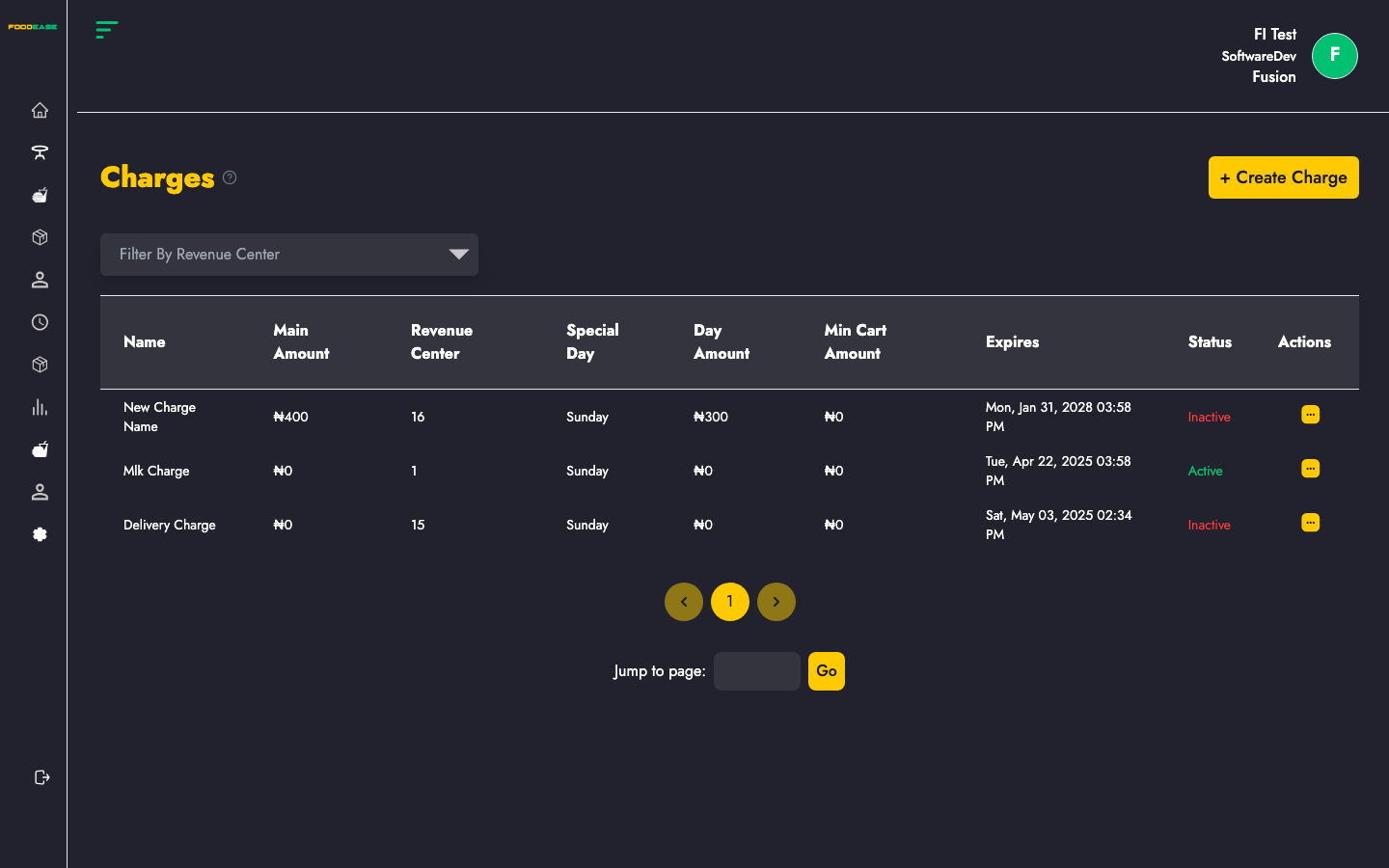
Page overview
| Column | Description |
|--------|-------------|
| Name | Charge label shown on orders |
| Main Amount | Default charge amount |
| Revenue Center | Number of centres where this charge applies |
| Special Day | Day of week for alternate pricing (if set) |
| Day Amount | Amount on the special day |
| Min Cart Amount | Minimum order value before charge applies |
| Expires | Optional expiry date |
| Status | Active or Inactive |
| Actions | Edit, toggle, or open detail |
You can also Filter by Revenue Center to see charges for one location.
Create a charge
- From the Charges list, click Create Charge (or navigate to the create charge page).
- Configure:
| Field | Description |
|-------|-------------|
| Name | e.g. Service Charge, Takeaway Packaging |
| Amount | Standard fee amount |
| Revenue Centres | Select which locations use this charge |
| Special Day / Day Amount | Optional higher or different fee on a specific weekday |
| Minimum cart amount | Only apply when order exceeds this value |
| Expiry date | Auto-disable after a date (promotions) |
- Save the charge.
Edit a charge
- Open Actions → Edit, or click through to the charge detail page.
- Update amounts, centres, or rules.
- Save.
Activate or deactivate
Use Actions → Toggle to disable a charge without deleting history.
Search and filter
- Filter the list by Revenue Center to audit fees per branch.
- Review Expires column for time-limited charges that need renewal.
Best practices
- Clearly name charges so customers and staff understand receipts.
- Set Min Cart Amount for small-order fees (e.g. delivery packaging only above a minimum).
- Review charges when opening a new Revenue Centre.
Related guides
- Sales Tax — percentage tax vs fixed charges
- Price List — menu-wide percentage adjustments
- Dining Tables