
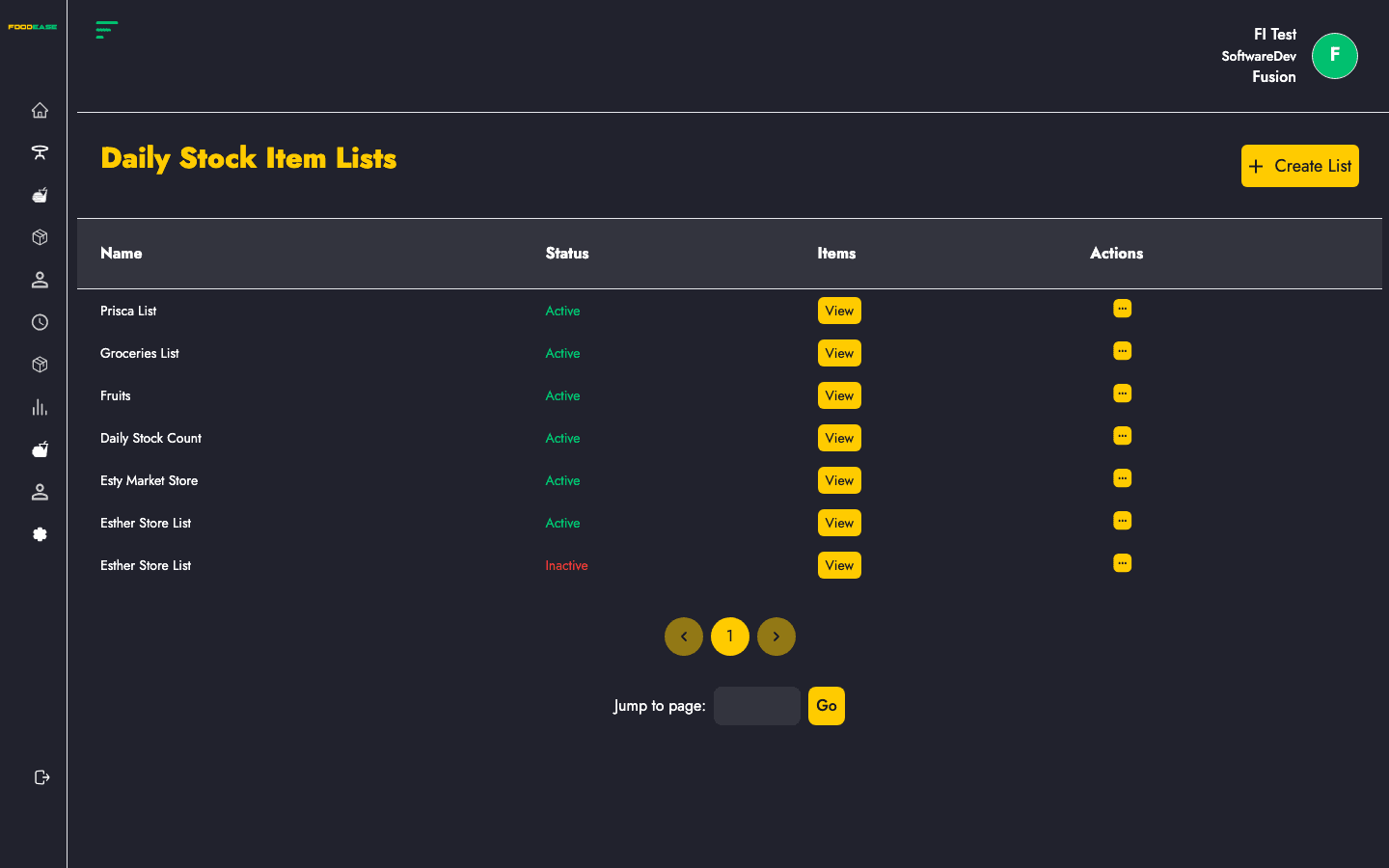
Daily Stock Item Lists are configurable item groups used when staff perform daily inventory counts. Create a named list, add stock items, and activate or deactivate lists as your operation changes.
Who can use this page?
Users need at least one of:
- View Stock Count List
- Create Stock Count List
- Edit Stock Count List
How to open Daily Stock Item Lists
- Log in to FoodEase Office.
- Sidebar → Inventory → Daily Stock Items Lists.
Page overview
| Column | Description |
|--------|-------------|
| Name | List label (e.g. bar close count, shift open) |
| Status | Active or Inactive |
| Items | View button to see items in the list |
| Actions | Edit or toggle active state |
| Tool | Description |
|------|-------------|
| Create List | Open modal to add a new list |
Create a list
- Click Create List (requires Create Stock Count List).
- In the modal, enter a List Name.
- Select stock items to include.
- Save — a success notification confirms creation and the table refreshes.
Both a name and at least one item are required.
Edit a list
- Open Actions → Edit on a row (requires Edit Stock Count List).
- Update the list name or change selected items in the edit modal.
- Save changes.
Activate or deactivate
Use Actions → Toggle to activate or deactivate a list without deleting it. Inactive lists remain in the system but are not used for new counts.
View items in a list
Click View in the Items column to open a read-only modal showing all items on that list.
Best practices
- Name lists by shift or station (e.g. Morning Bar, Kitchen Close) so staff pick the right template.
- Keep lists focused — smaller lists are faster to count on busy shifts.
- Deactivate seasonal lists instead of deleting history.
- Review resulting counts on Daily Stock Count.