
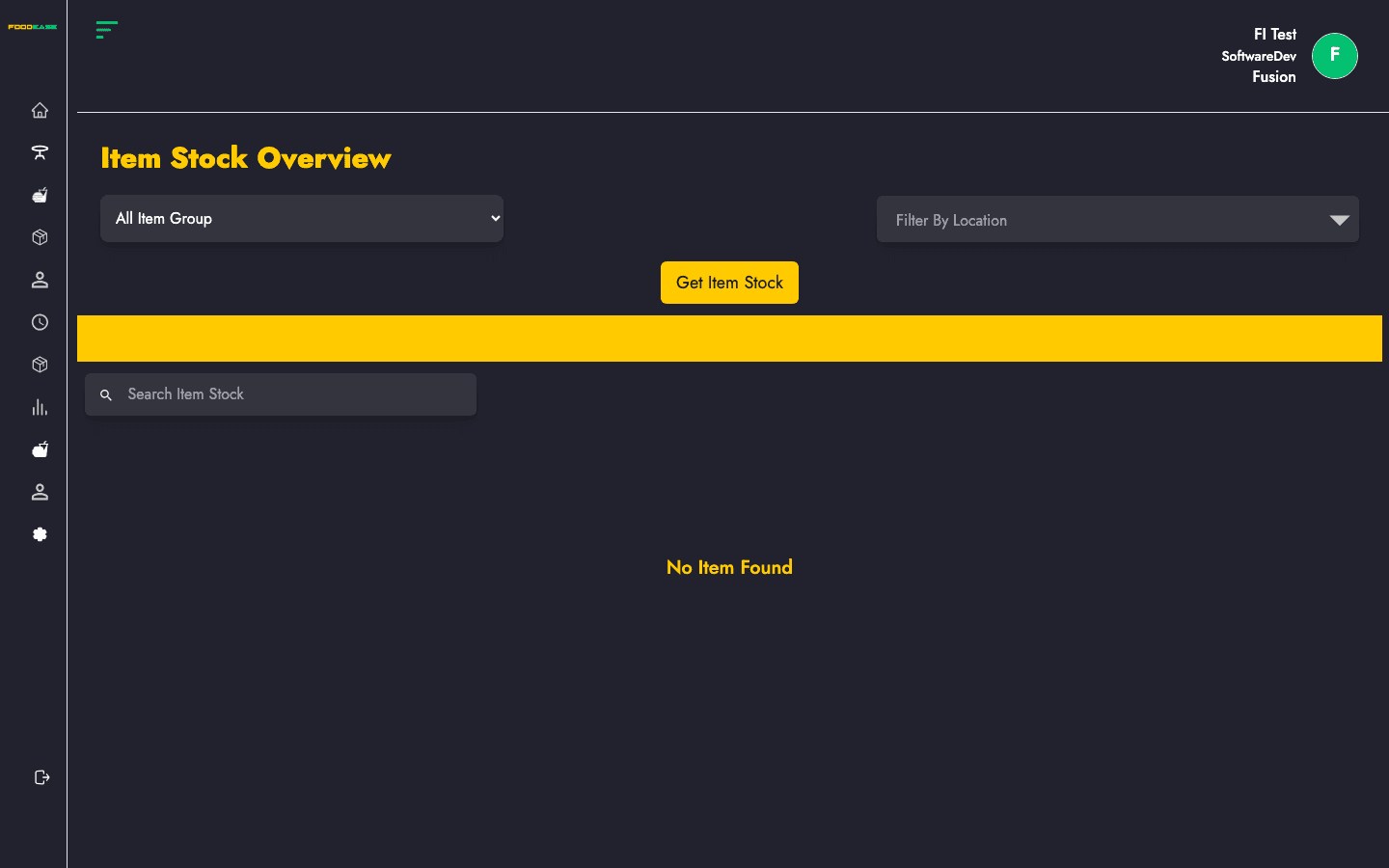
The Inventory Overview page shows current stock levels for tracked items at a selected store location. Use it to spot low stock, compare available quantity against thresholds, and export or print a snapshot for audits.
Who can use this page?
All logged-in FoodEase Office users can open Overview under Inventory. No special permission is required.
How to open Inventory Overview
- Log in to FoodEase Office.
- Sidebar → Inventory → Overview.
Page overview
| Area | Description |
|------|-------------|
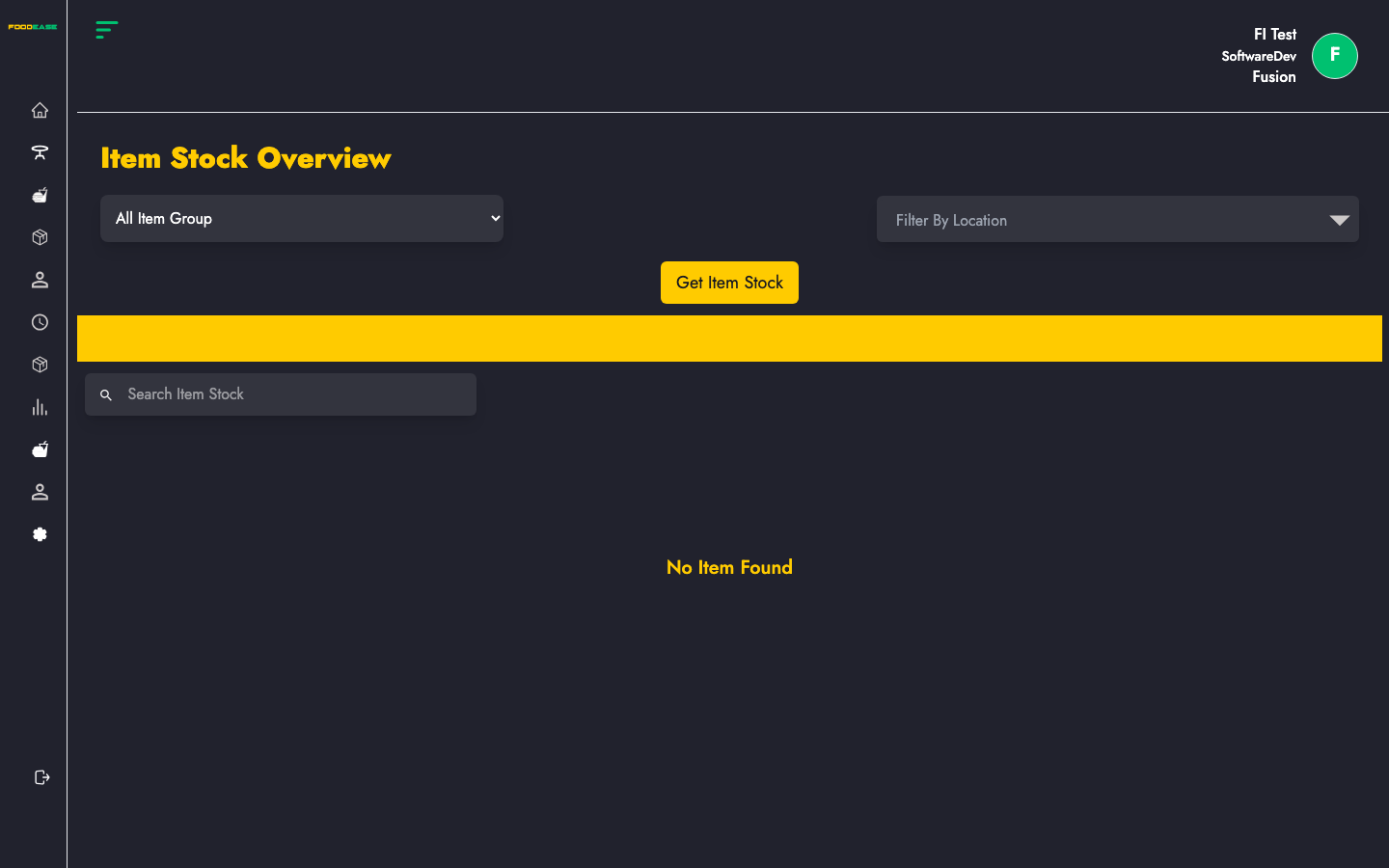
| All Item Group | Filter by Single, Component, or Sundry |
| Store Location | Select which location to query |
| Get Item Stock | Load stock data for the selected filters |
| Search Item Stock | Filter loaded results by item name |
| Generate PDF | Print a PDF of the current overview (after data is loaded) |
| Export | Download the overview as Excel |
| Column | Description |
|--------|-------------|
| Name | Item name |
| Inventory UoM | Unit of measurement used for inventory |
| Available Quantity | Current stock on hand |
| Threshold Quantity | Minimum level before reorder alerts |
| Location | Store location for this row |
View stock levels
- Optionally choose an Item Group (Single, Component, or Sundry), or leave All Item Group.
- Select a Store Location.
- Click Get Item Stock.
- Use Search Item Stock to narrow the table by name.
Results appear only after you click Get Item Stock. If nothing loads, confirm the location has stock-tracked items assigned.
Export and print
After data is loaded:
- Click Generate PDF to print or save a PDF report.
- Click Export to download an Excel file named Stock Overview.
Best practices
- Run the overview before creating a Requisition so quantities reflect current needs.
- Compare Available Quantity with Threshold Quantity to prioritise purchasing.
- Filter by Component when reviewing ingredient levels for recipes.
- Set up Locations and assign store locations on items before relying on overview data.