
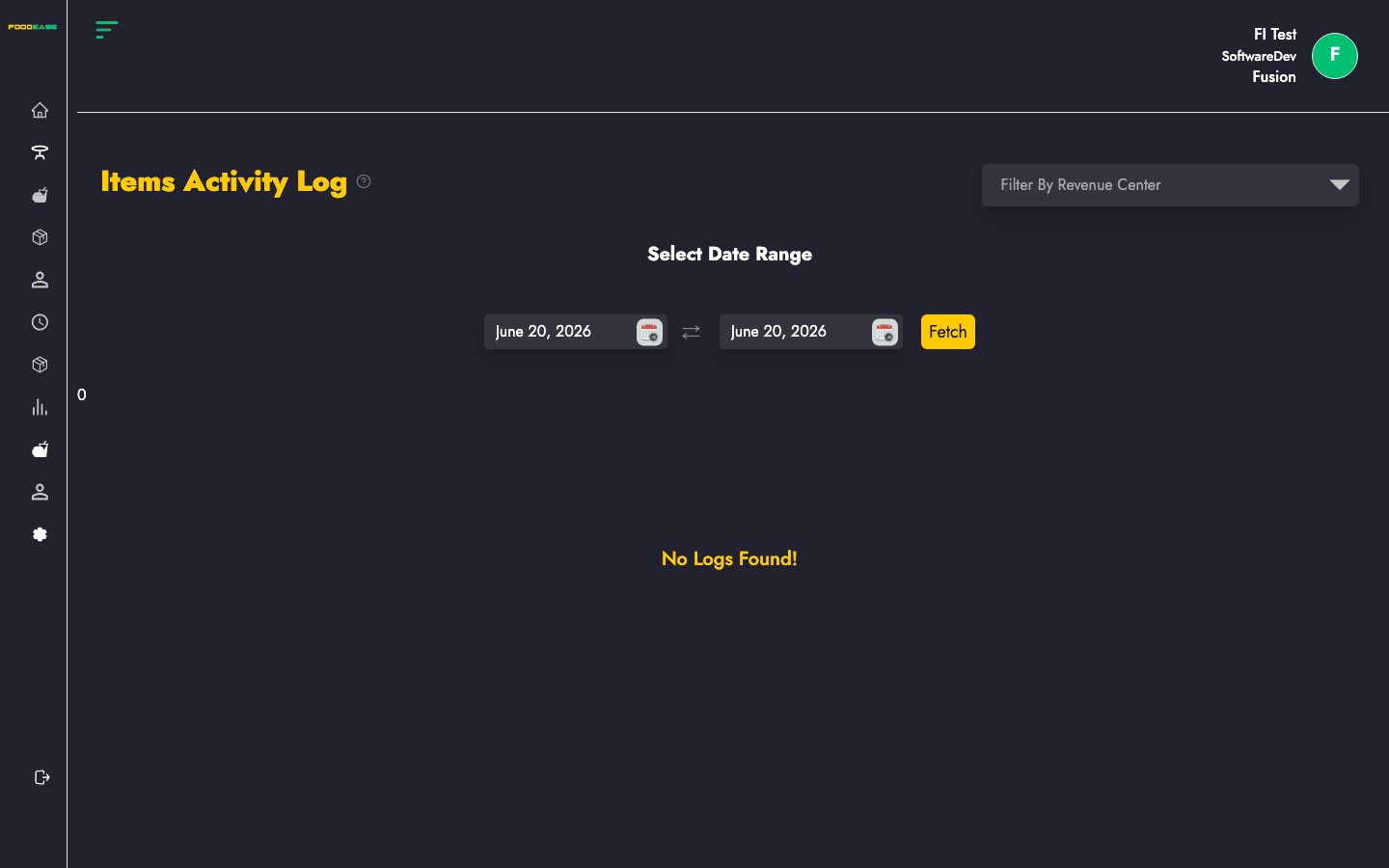
The Items Activity Log (shown as Items Activity Log in the app) records who changed what on your menu items — useful for audits, troubleshooting, and manager oversight.
Who can use this page?
Staff with Create Item or Edit Item permissions.
How to open Items Activity Log
- Log in to FoodEase Office.
- Sidebar → Items → Items Log.
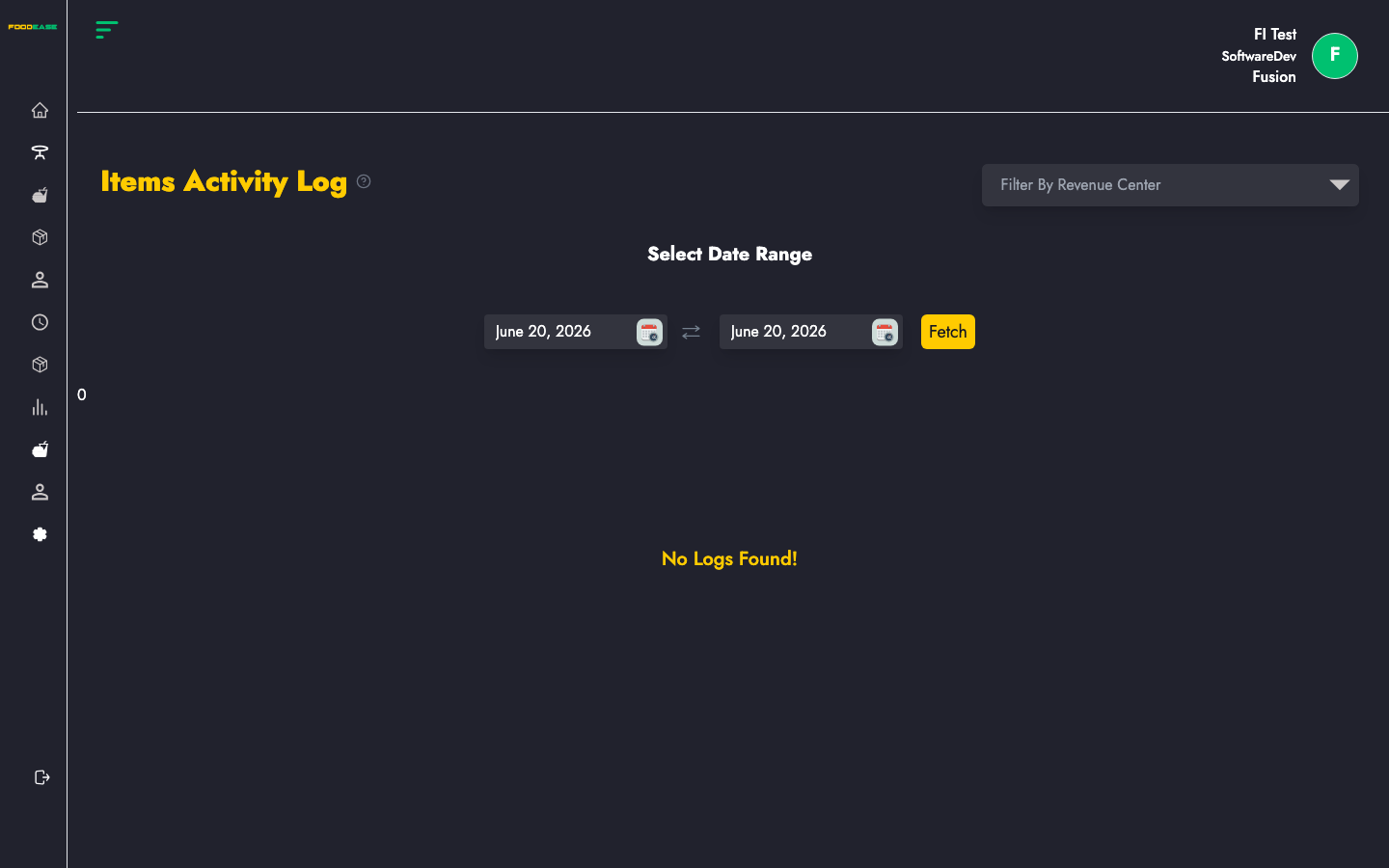
Page overview
| Area | What it does |
|------|----------------|
| Filter by Revenue Center | Limit logs to one branch |
| Select Date Range | Choose the period to review |
| Generate PDF | Export the log as a printable PDF |
| Export Excel | Download spreadsheet of log entries |
| Table | Item Name, Activity performed, Staff Name, Date |
View activity for a date range
- Under Select Date Range, pick your from and to dates using the date filter.
- The table loads automatically for the selected range (default is roughly the last few days).
- Optionally select a Revenue Center to narrow results to one location.
Export the log
When records are available:
- Generate PDF — creates a branded PDF with restaurant name, location, date range, and full log table.
- Export Excel — downloads an
.xlsxfile with columns: Item Name, Activity Performed, Staff Name, Date Created.
Understanding log entries
Each row shows:
- Item Name — which product was affected
- Activity performed — what action was taken (create, update, price change, etc.)
- Staff Name — who performed the action
- Date — when it happened
Best practices
- Review logs after bulk price updates or menu overhauls.
- Use revenue centre filter when investigating a location-specific issue.
- Export to Excel for longer-term record keeping or sharing with auditors.
Related guides
- Items — where menu changes originate
- Item Class