
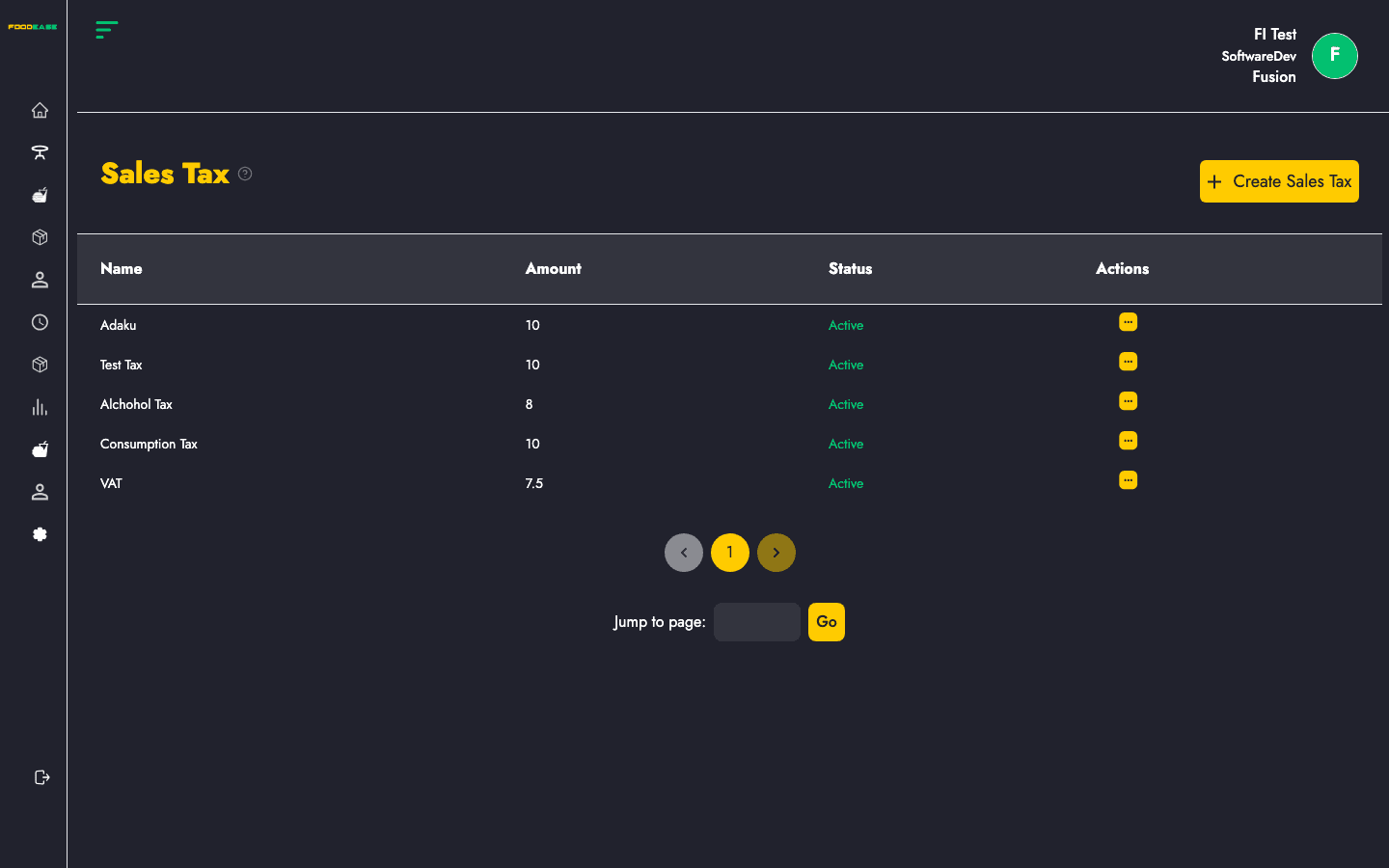
Sales Tax entries define tax rates added to orders — government VAT, state tax, or other percentage-based levies. Taxes are assigned to Items and applied automatically at checkout.
Who can use this page?
Users with access to Tables configuration.
How to open Sales Tax
- Log in to FoodEase Office.
- Sidebar → Tables → Sales Tax.
Page overview
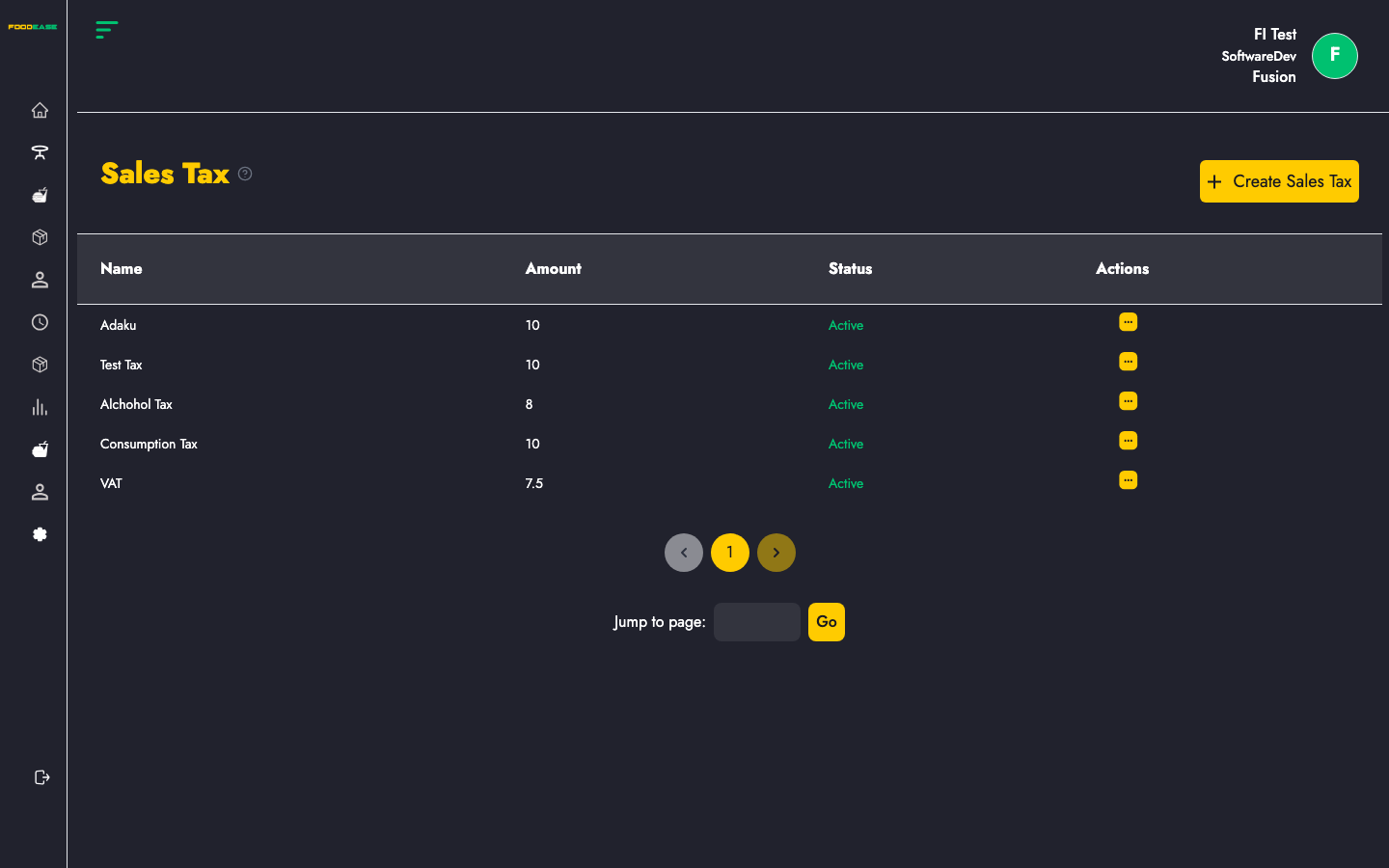
| Column | Description |
|--------|-------------|
| Name | Tax name (e.g. VAT 7.5%) |
| Amount | Tax rate or amount |
| Status | Active or Inactive |
| Actions | Edit or toggle |
Create a sales tax
- Click Create Sales Tax.
- Enter:
- Name — label for receipts and reports
- Amount — tax rate (as configured in your region)
- Save.
Edit a sales tax
- Open Actions → Edit.
- Update name or amount.
- Save.
Activate or deactivate
Use Actions → Toggle. Deactivated taxes cannot be assigned to new items but historical orders retain their original tax.
Link taxes to menu items
After creating tax records:
- Go to Items.
- Create or edit an item.
- Select the appropriate Tax on the item form.
Items without a tax assigned may not calculate tax correctly on POS — verify during menu setup.
Best practices
- Match tax names to statutory labels your customers expect on receipts.
- Review tax rates when regulations change.
- Coordinate with Charges — tax is separate from service fees.