
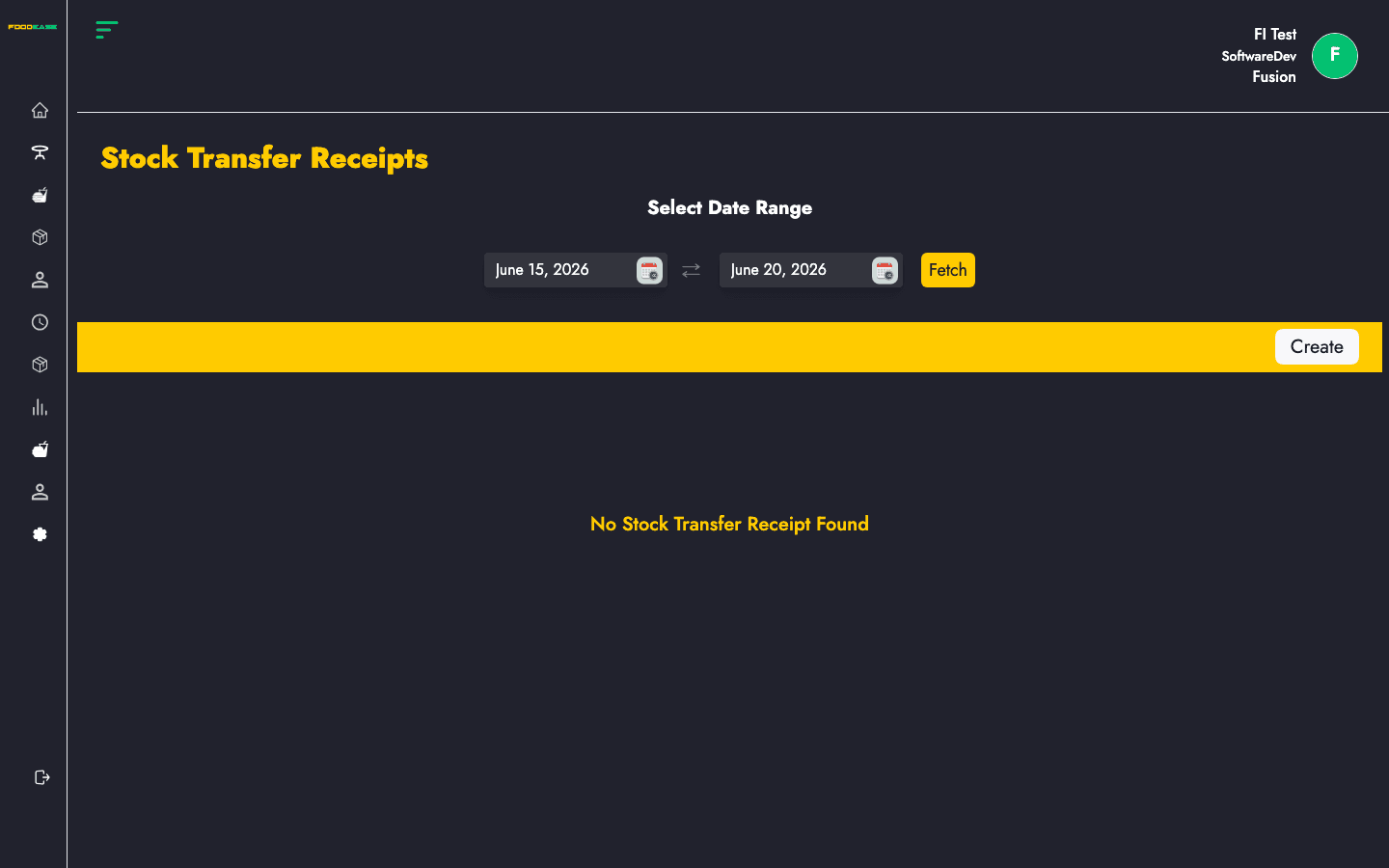
A Stock Transfer Receipt records that items from a Stock Transfer Request (or an external transfer) were received at the destination location. Receipts track who received goods and whether all items were received.
Who can use this page?
Users need at least one of:
- Create Stock Transfer Receipt
- Approve Stock Transfer Receipt
How to open Stock Transfer Receipt
- Log in to FoodEase Office.
- Sidebar → Inventory → Stock Transfer Receipt.
Page overview
| Column | Description |
|--------|-------------|
| Id | Internal record id |
| Transfer Receipt Id | Receipt reference (click to view) |
| Transfer Request Id | Linked transfer request |
| From | Source store location |
| To | Destination store location |
| Received By | Staff who confirmed receipt |
| Items Received | Whether items were marked received |
| Date Ordered | Order/transfer date |
| Date Completed | Completion date |
| Status | Workflow state |
| Actions | View receipt detail |
| Filter / tool | Description |
|---------------|-------------|
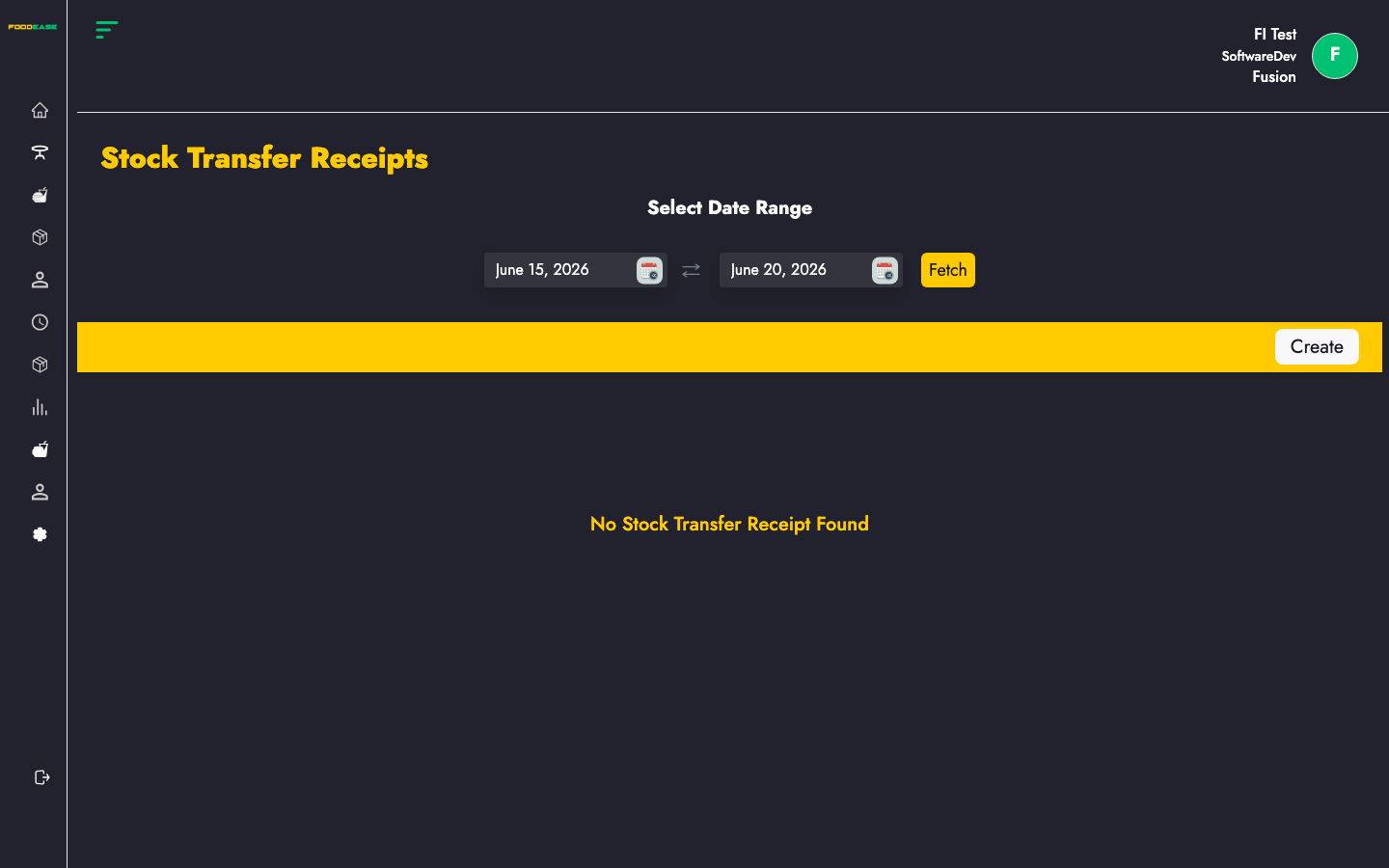
| Date range | Load receipts within a period |
| Create | Start a new transfer receipt |
Create a transfer receipt
- Click Create (requires Create Stock Transfer Receipt).
- You are taken to
/dashboard/stocks/create-stock-transfer-receipt. - Link to an approved Stock Transfer Request or use the external transfer receipt flow (
create-external-stock-transfer-receipt) when receiving from outside your restaurant network. - Confirm items, quantities, and receiving location.
- Save or submit for approval.
An external receipt path exists at /dashboard/stocks/create-external-stock-transfer-receipt for cross-restaurant transfers.
View or approve a receipt
- Open Actions or click the Transfer Receipt Id.
- On
/dashboard/stocks/view-stock-transfer-receipt/{id}, review From/To locations, items, and status. - Approvers confirm receipt so destination stock levels update.
Search and filter
- Set a date range to load transfer receipts for reporting.
Best practices
- Always tie receipts to the correct Transfer Request Id when fulfilling internal transfers.
- Confirm Items Received at the destination before approving — discrepancies affect both locations’ stock.
- Review Stock Movement Log after transfers to audit additions and deductions.