
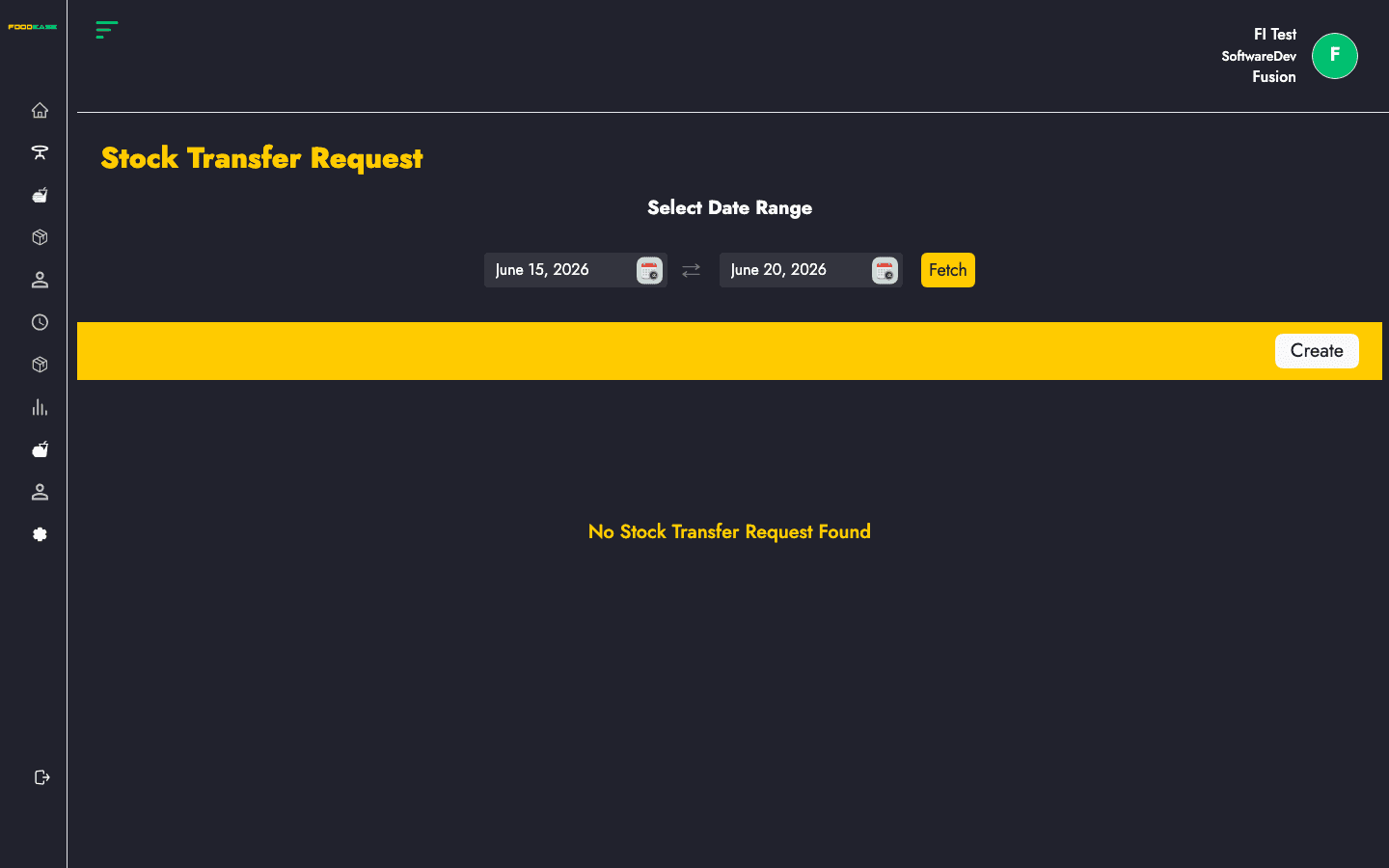
A Stock Transfer Request moves inventory from one store location to another. Create a request with items and a schedule date, then fulfil it with a Stock Transfer Receipt.
Who can use this page?
Users need at least one of:
- Create Stock Transfer Receipt
- Approve Stock Transfer Receipt
Note: Transfer request menu access uses the same claims as transfer receipts in FoodEase Office.
How to open Stock Transfer Request
- Log in to FoodEase Office.
- Sidebar → Inventory → Stock Transfer Request.
Page overview
| Column | Description |
|--------|-------------|
| Transfer Request Id | Request reference (click to view) |
| From | Originating store location |
| To | Destination store location |
| Request Date | Date the request was created |
| Schedule Date | Planned transfer date |
| Status | Workflow state (e.g. Waiting, Approved) |
| Actions | View or edit |
| Filter / tool | Description |
|---------------|-------------|
| Date range | Load requests within a period |
| Create | Start a new transfer request |
Create a transfer request
- Click Create.
- On
/dashboard/stocks/create-stock-transfer-request:
| Field | Description |
|-------|-------------|
| From / To locations | Source and destination store locations |
| Schedule Date | When the transfer should occur |
| Items | Stock items, UoM, and quantities to move |
- Click Add Item to pick items from stock at the source location.
- Enter quantity and UoM for each line.
- Save or submit the request according to the form buttons.
Edit a waiting request
Requests with status Waiting open the edit screen (/dashboard/stocks/edit-stock-transfer-request/{id}). Other statuses open the view page.
Approve and fulfil
- Open the request detail page to review quantities and locations.
- After approval, create a Stock Transfer Receipt to confirm items were received at the destination.
Search and filter
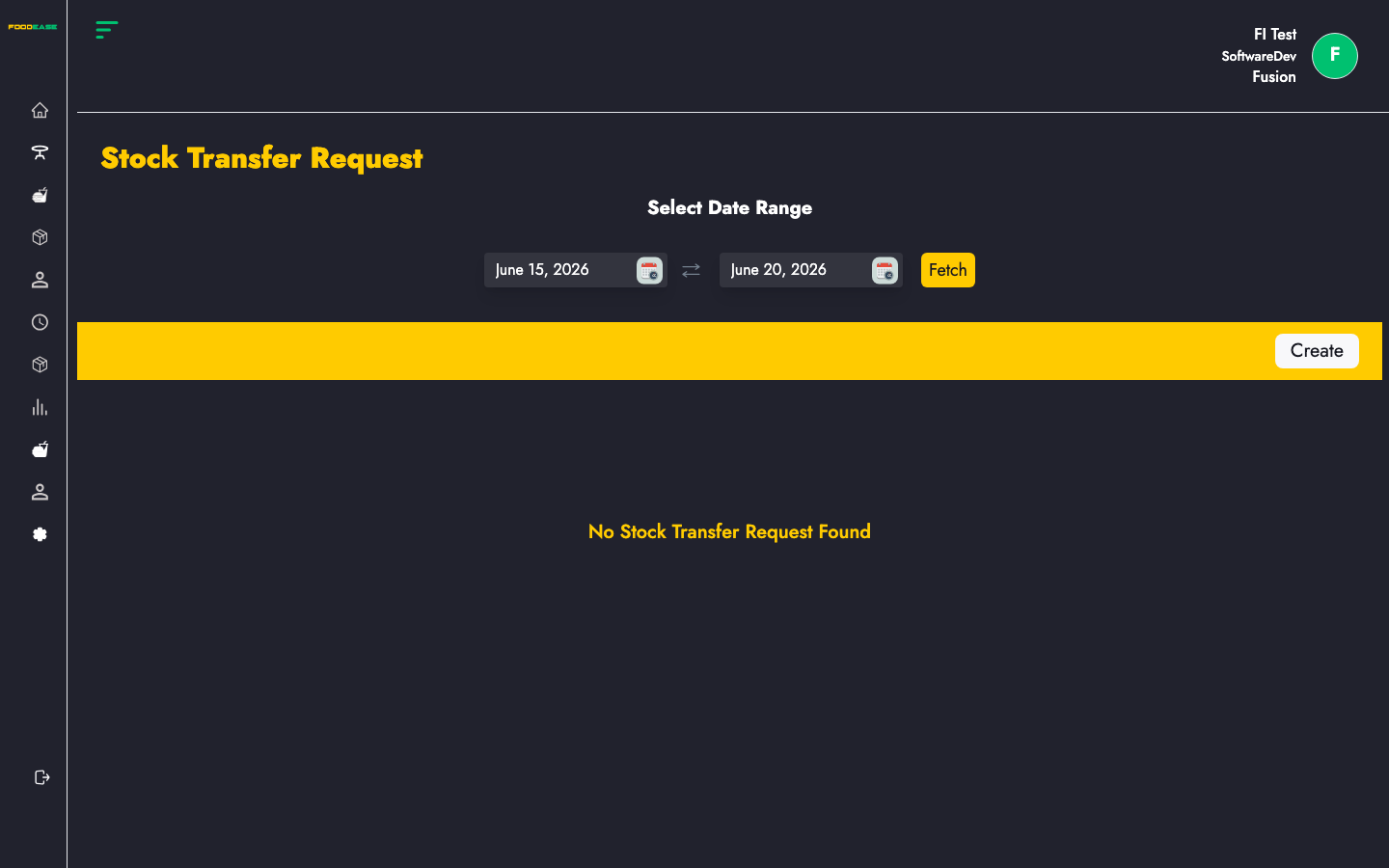
- Select a date range to load transfer requests for that period.
Best practices
- Verify Available Quantity at the source location using Inventory Overview before requesting large transfers.
- Align Schedule Date with delivery or prep schedules at the receiving location.
- Use consistent Locations naming so From/To fields are unambiguous.