
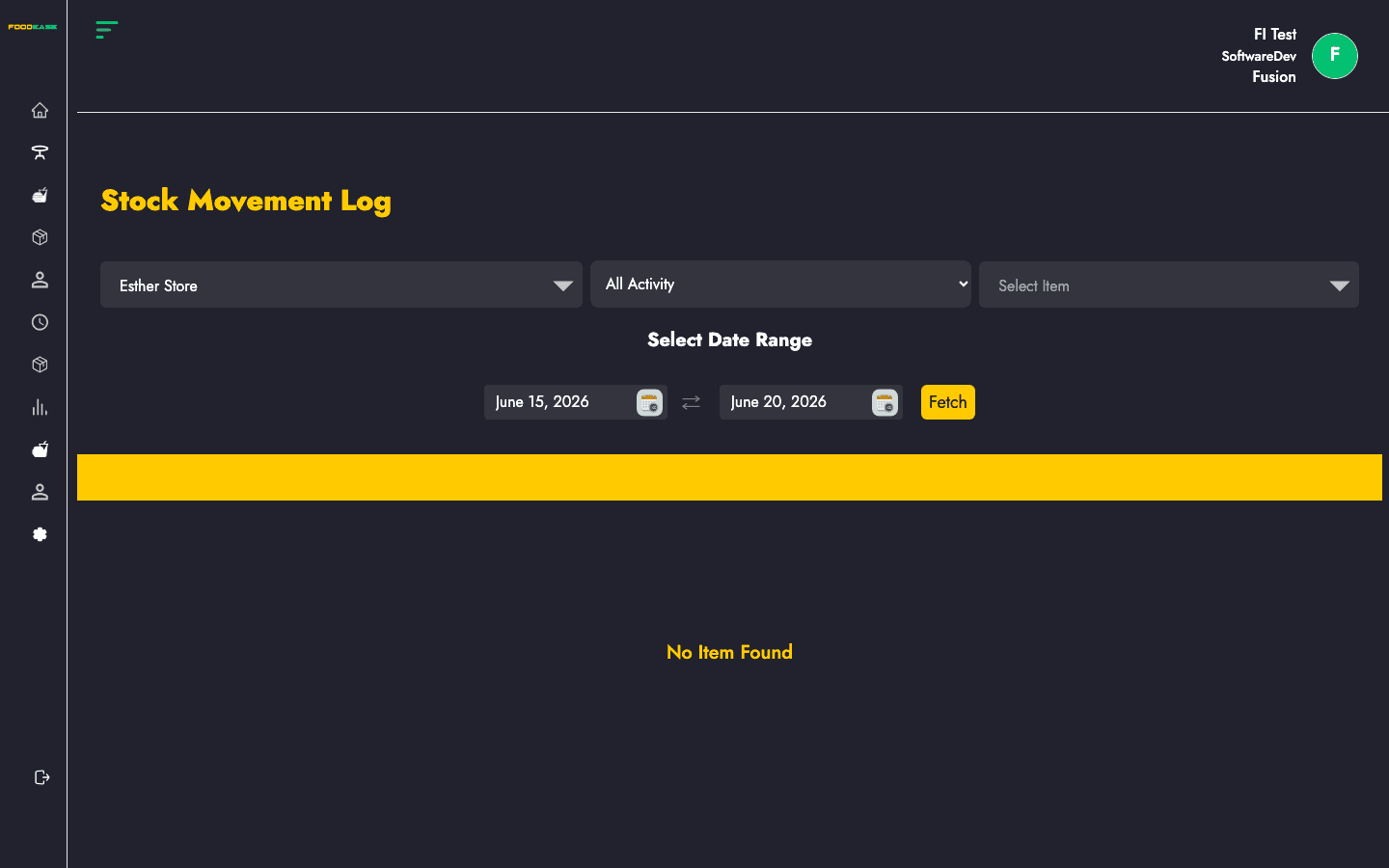
The Stock Movement Log (stock deduction log) tracks how item quantities change over time — opening balance, additions, deductions, closing balance, and a description of each movement.
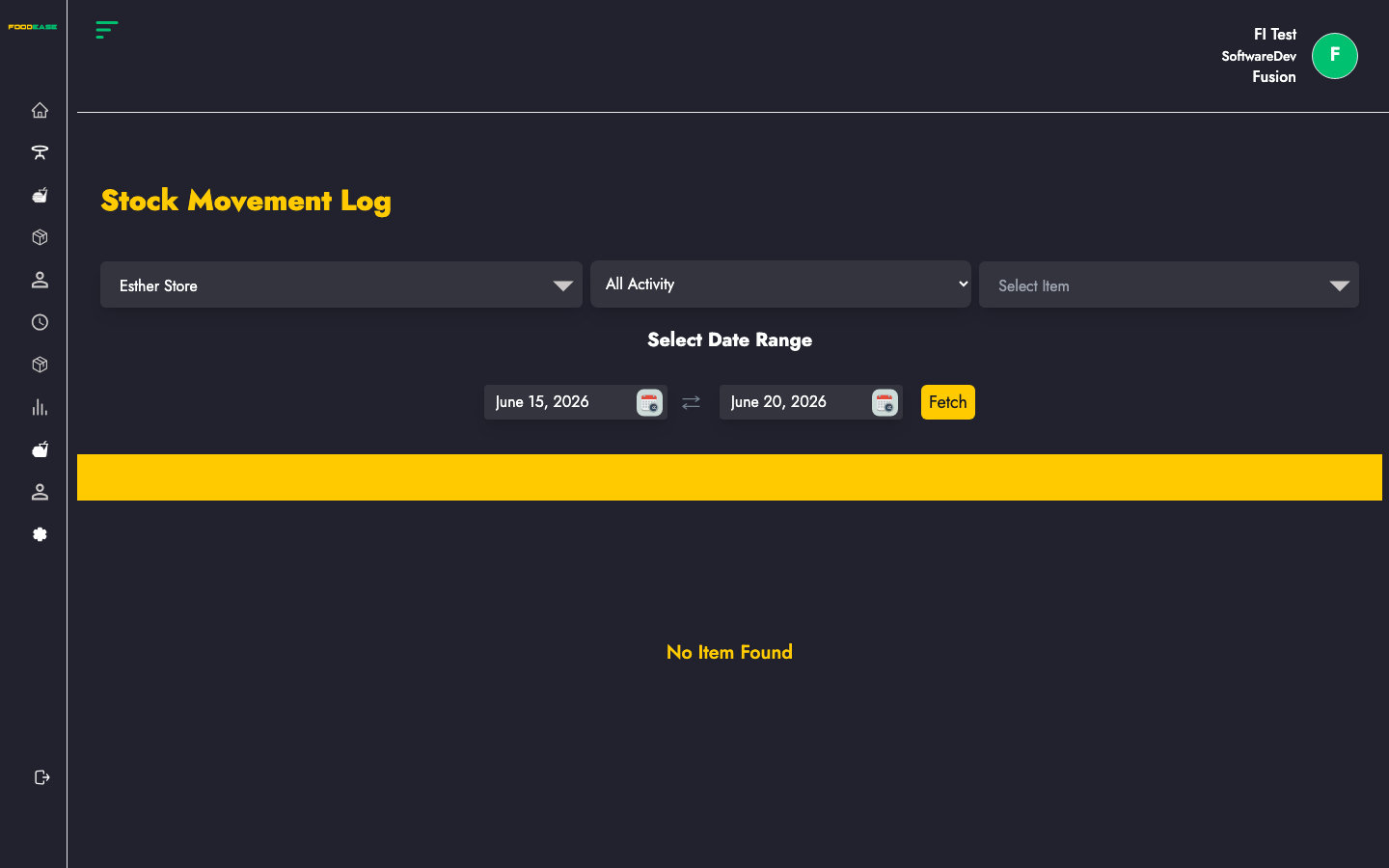
Who can use this page?
Users need at least one of:
- Create Daily Stock Movement
- View Daily Stock Movement
How to open Stock Movement Log
- Log in to FoodEase Office.
- Sidebar → Inventory → Stock Movement Log.
Page overview
| Column | Description |
|--------|-------------|
| Name | Item name |
| IUoM | Inventory unit of measurement |
| Opening Quantity | Balance before the movement |
| Added Quantity | Stock added |
| Deducted Quantity | Stock removed |
| Closing Quantity | Balance after the movement |
| Date Created | Timestamp of the entry |
| Description | Reason or source of the movement |
| Filter / tool | Description |
|---------------|-------------|
| Date range | Period to query |
| Store Location | Defaults to your revenue centre’s location when available |
| Item | Filter by a specific item |
| Activity type | All Activity, Addition, or Deduction |
| Generate PDF | Print the log |
| Export | Download as Excel |
Run a movement report
- Select a date range.
- Choose Store Location (pre-filled from your profile when possible).
- Optionally filter by Item or Activity type.
- The table loads automatically when filters change.
Search and export
- Use Activity type to separate inbound (Addition) from outbound (Deduction) events.
- Export includes item name, IUoM, opening/added/deducted/closing quantities, date, and description.
- Share filtered PDFs with auditors using Generate PDF.
Best practices
- Investigate large Deducted Quantity rows by reading the Description field.
- Compare movement logs with Stock Ledgers for financial reconciliation.
- Filter by location when reviewing a single store’s activity.
- Use alongside Daily Stock Count to explain shift-level variances.