
Use this guide after you are familiar with Create an Item. Editing reuses the same form but with important differences.
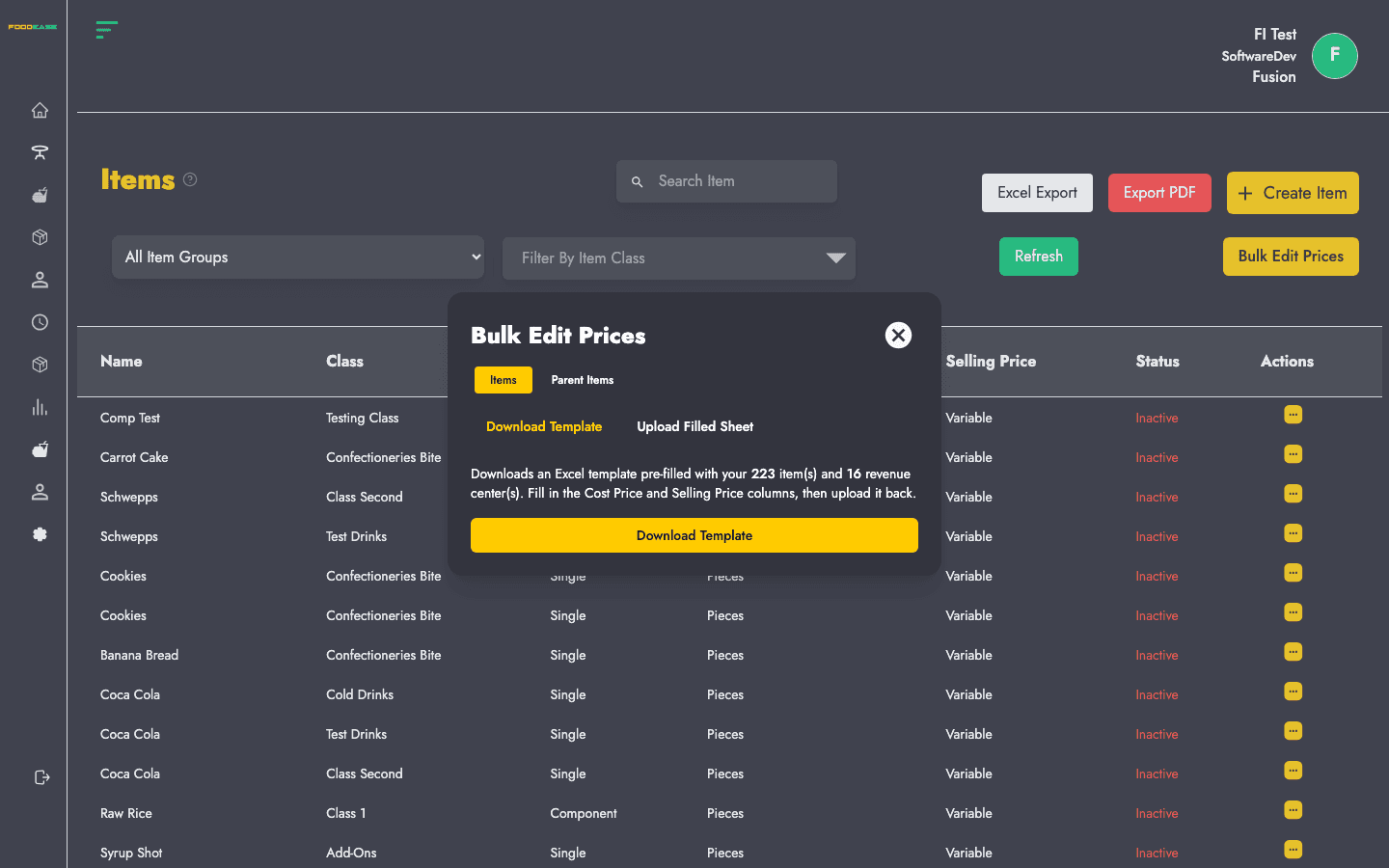
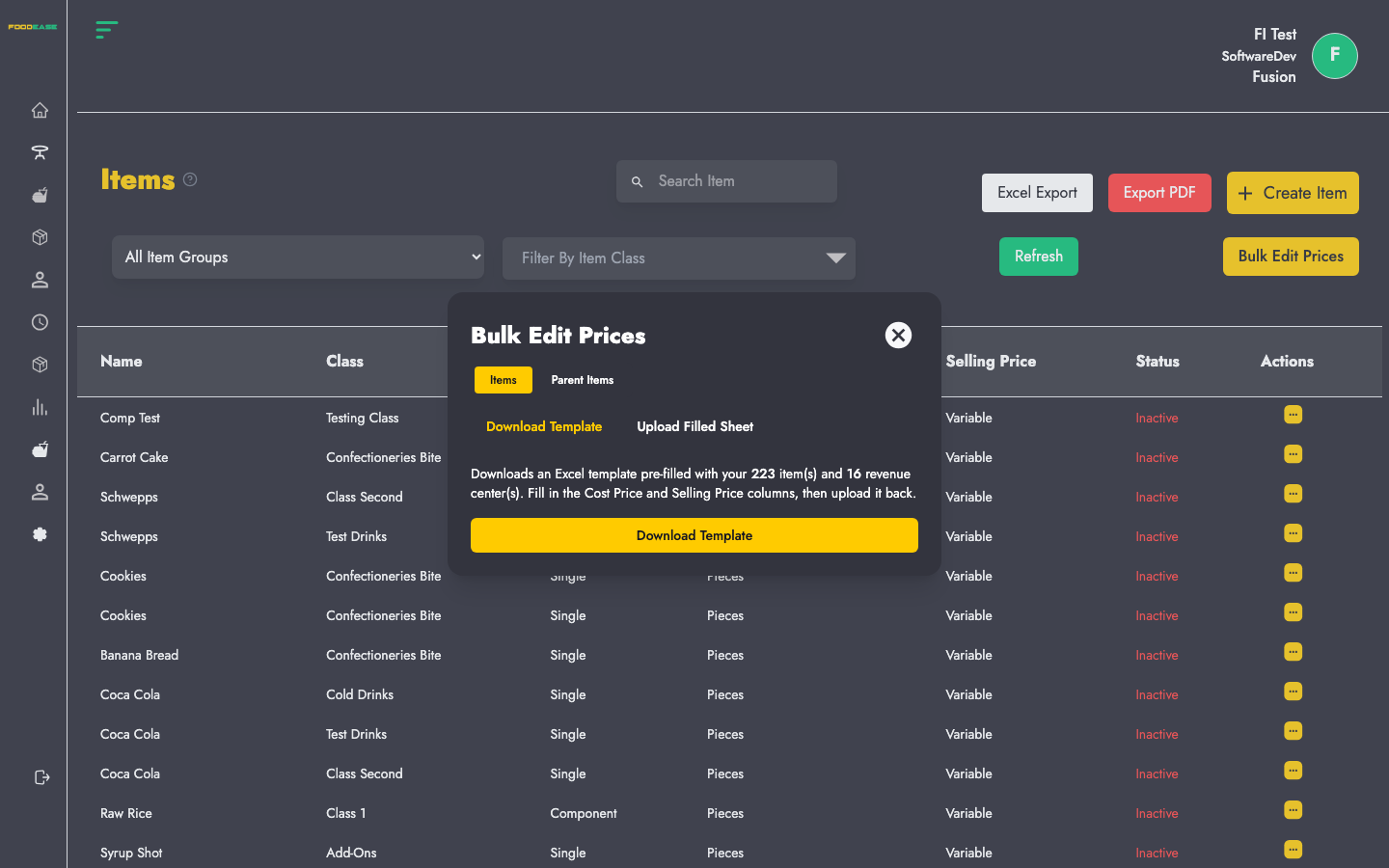
How to open the edit form
- Go to Items → Items (
/dashboard/items/items). - Find the item (search, filter by group or class).
- Open Actions (⋮) on the row → Edit.
FoodEase opens: /dashboard/items/edit-items/{id}?itemGroup={group}
The correct form loads automatically for that item’s group.
Header actions in edit mode
| Button | What it does |
|--------|----------------|
| Save | Saves your changes |
| Duplicate | Opens the create form pre-filled from this item (new product) |
| Cancel | Returns to the Items list |
Reset is not shown when editing.
What you cannot change
| Field | Edit behaviour |
|-------|----------------|
| Item Group | Locked — disabled on the form. To use a different group, duplicate the item and choose the new group on the duplicate. |
What you can update
Everything else from the create guide is editable:
- Name, short name, description, prep time, item type
- Cover and slide images
- Tax, UoM, inventory UoM, unit, transformable flag
- Cost price, selling price, vendor assignments
- Item class, topping class, sales sources
- Revenue centre pricing table, prep areas, store locations
- Package/Parent child items or Recipe components
Existing values load automatically when the form opens.
Duplicate an item
Duplicating is the fastest way to create a similar product.
- Open the item in edit mode.
- Click Duplicate (yellow button).
- You are taken to
/dashboard/items/create-items?id={id}&itemGroup={group}with fields pre-filled. - Change the name and any fields that differ.
- Click Save to create a new item (the original is unchanged).
On duplicate, you can change Item Group before saving if needed.
Activate or deactivate from the list
You do not need the edit form to toggle visibility:
- On the Items list, open Actions → Toggle.
- Requires Toggle Item permission.
- Inactive items show in red; active in green.
Price overrides per revenue centre
When editing, you can enable Allow price overrides per revenue centre in the pricing section to set different selling/cost prices per location without changing the base selling price for all centres.
Tips for safe edits
- Changing prep areas or store locations affects kitchen routing and inventory — coordinate with managers before changing live items.
- Recipe component changes affect food cost and stock deductions — verify quantities after edits.
- WhatsApp source still requires a cover image if that channel remains enabled.
- Check the Items Activity Log after bulk changes to confirm who changed what.