
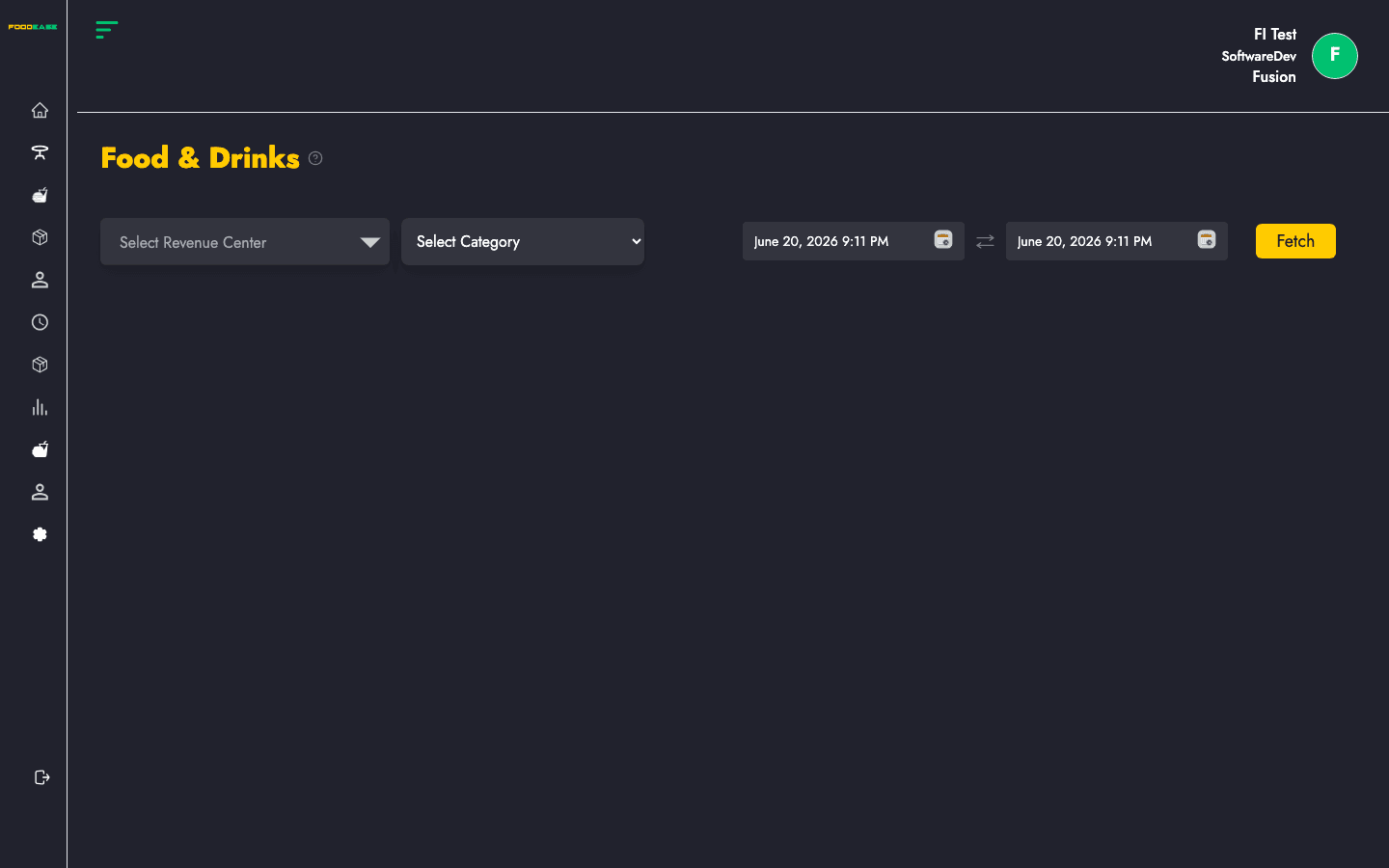
Groups revenue into food vs drinks so you can see category mix over time.
How to open this report
- Log in to FoodEase Office.
- In the sidebar, expand Reports and click View All Reports.
- Search for Food & Drinks Report or scroll the list.
- Click the report name or View Report.
You can also open it directly: Food & Drinks Report in Office.
Run the report
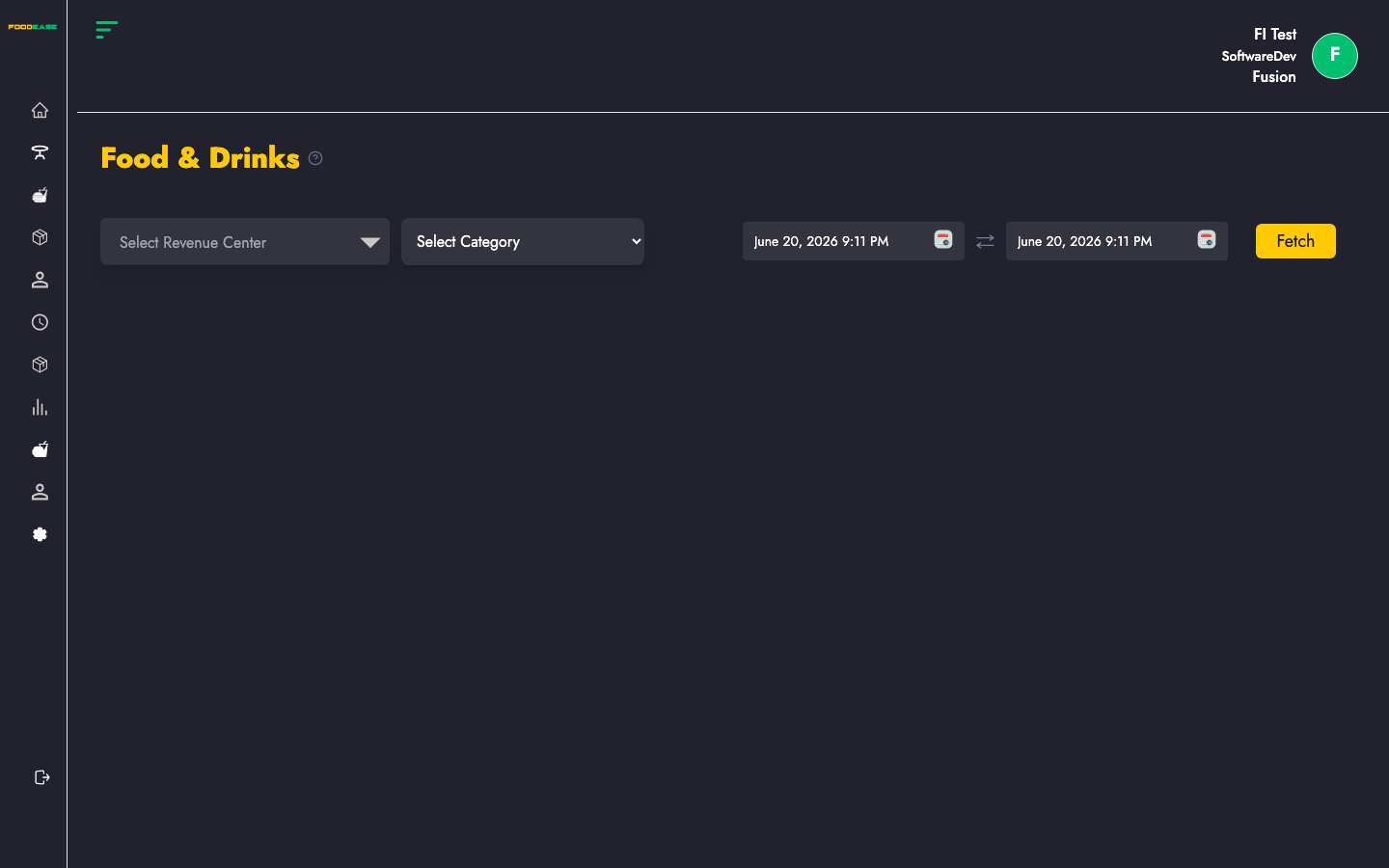
Most reports share the same controls at the top of the page:
| Control | Purpose |
|---------|---------|
| Date range | Set Date From and Date To, then apply the filter to load data |
| Revenue centre | Optional — limit results to one outlet; leave blank for all centres |
| Print / Export | Use the header actions to print or download (PDF/Excel where available) |
After you set filters, the table or chart refreshes with data for that period.
What this report shows
Groups revenue into food vs drinks so you can see category mix over time.
Tips
- Start with a short date range (today or this week) to confirm the layout before running month-end reports.
- Pair operational reports with Sessions to reconcile cashier shifts.
- Return to View All Reports to browse every available report or set up Automated Reports.