
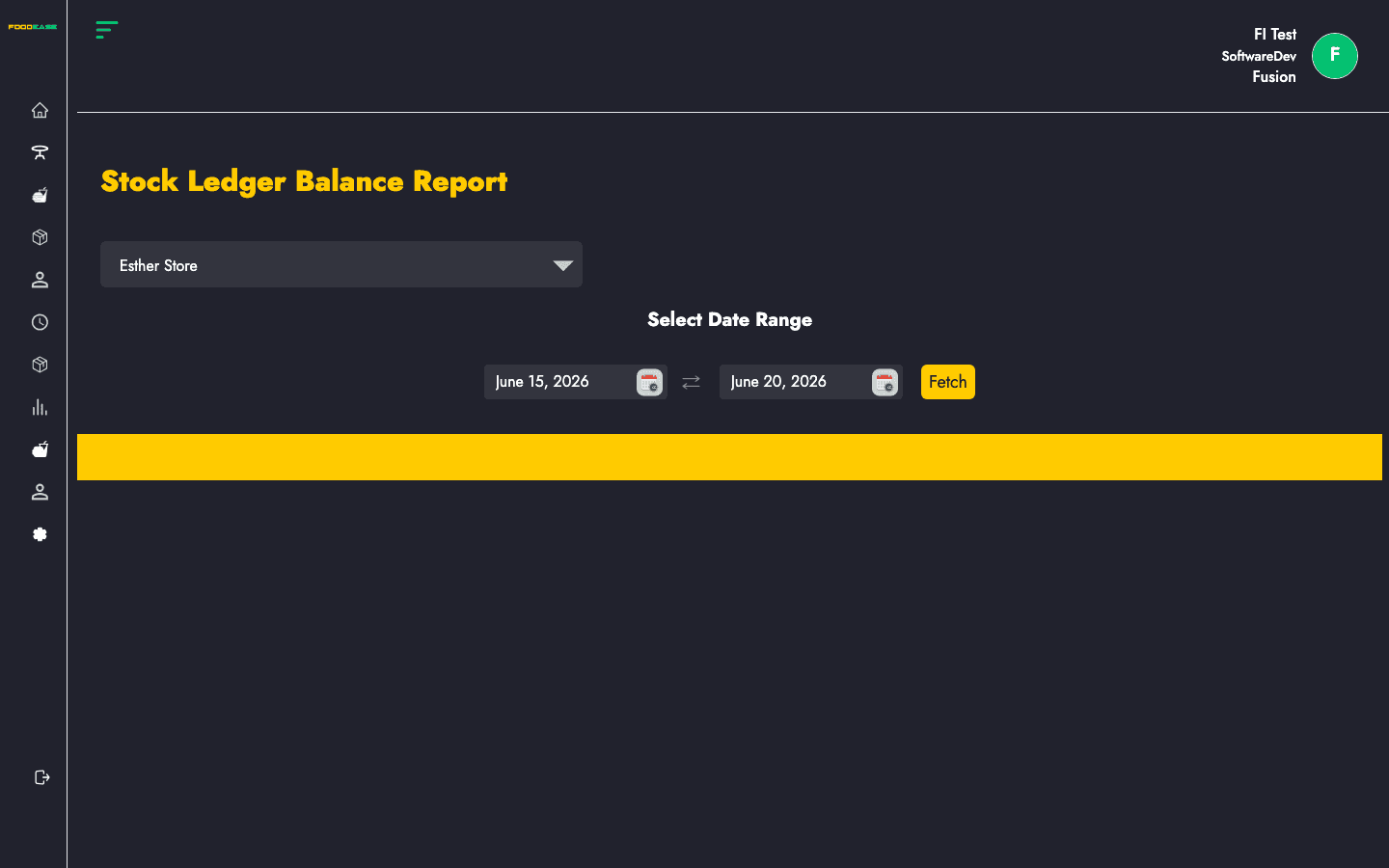
The Stock Ledger Balance Report aggregates ledger activity into credit and debit totals per location. Use it for period-end reconciliation alongside the detailed Stock Ledgers view.
Who can use this page?
Users need View Daily Stock Movement permission.
How to open Stock Ledger Balance Report
- Log in to FoodEase Office.
- Sidebar → Inventory → Stock Ledger Balance Report.
Page overview
| Column | Description |
|--------|-------------|
| Credit Count | Number of credit ledger entries |
| Debit Count | Number of debit ledger entries |
| Total Credit | Sum of credit amounts |
| Total Debit | Sum of debit amounts |
| Balance | Total Credit minus Total Debit |
| Location | Store location |
| Filter / tool | Description |
|---------------|-------------|
| Date range | Reporting period |
| Store Location | Filter to one location (defaults from your revenue centre when available) |
| Generate PDF | Print the summary |
| Export | Download as Excel |
Run the balance report
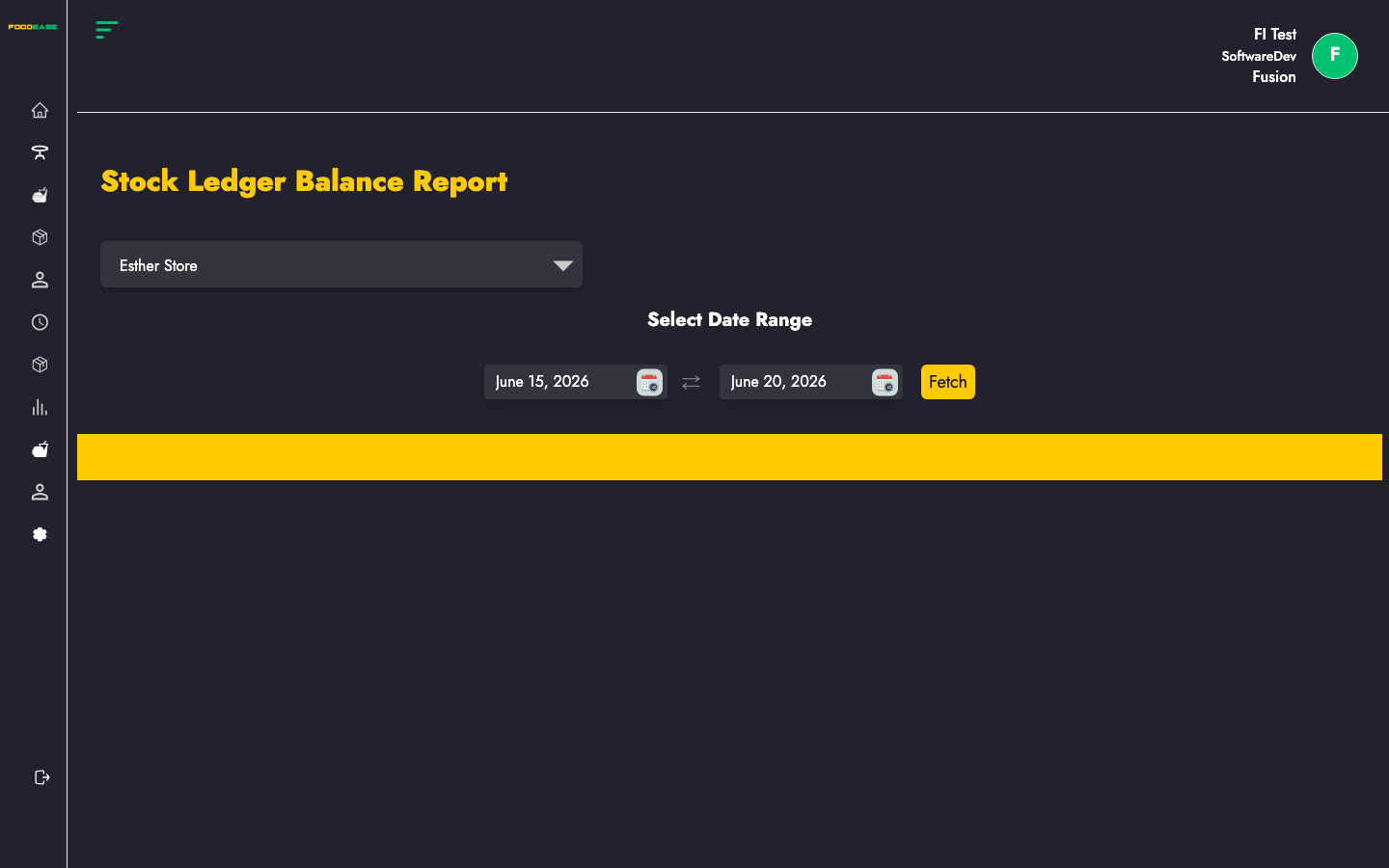
- Select a date range.
- Choose Store Location or leave the default pre-selected location.
- The table loads with aggregated counts and amounts.
- Review Balance — positive values mean net credit exceeds debits for the period at that location.
Search and export
- Change date range to compare weeks or month-end closes.
- Export and Generate PDF include the same summary columns for finance handoff.
Best practices
- Run this report after month-end alongside Stock Ledgers detail exports.
- Investigate locations with unusually high Debit Count relative to Credit Count.
- Align balance review with End of Month Inventory and Stock Adjustment cycles.
- Use location filters when consolidating multi-branch operations one site at a time.