
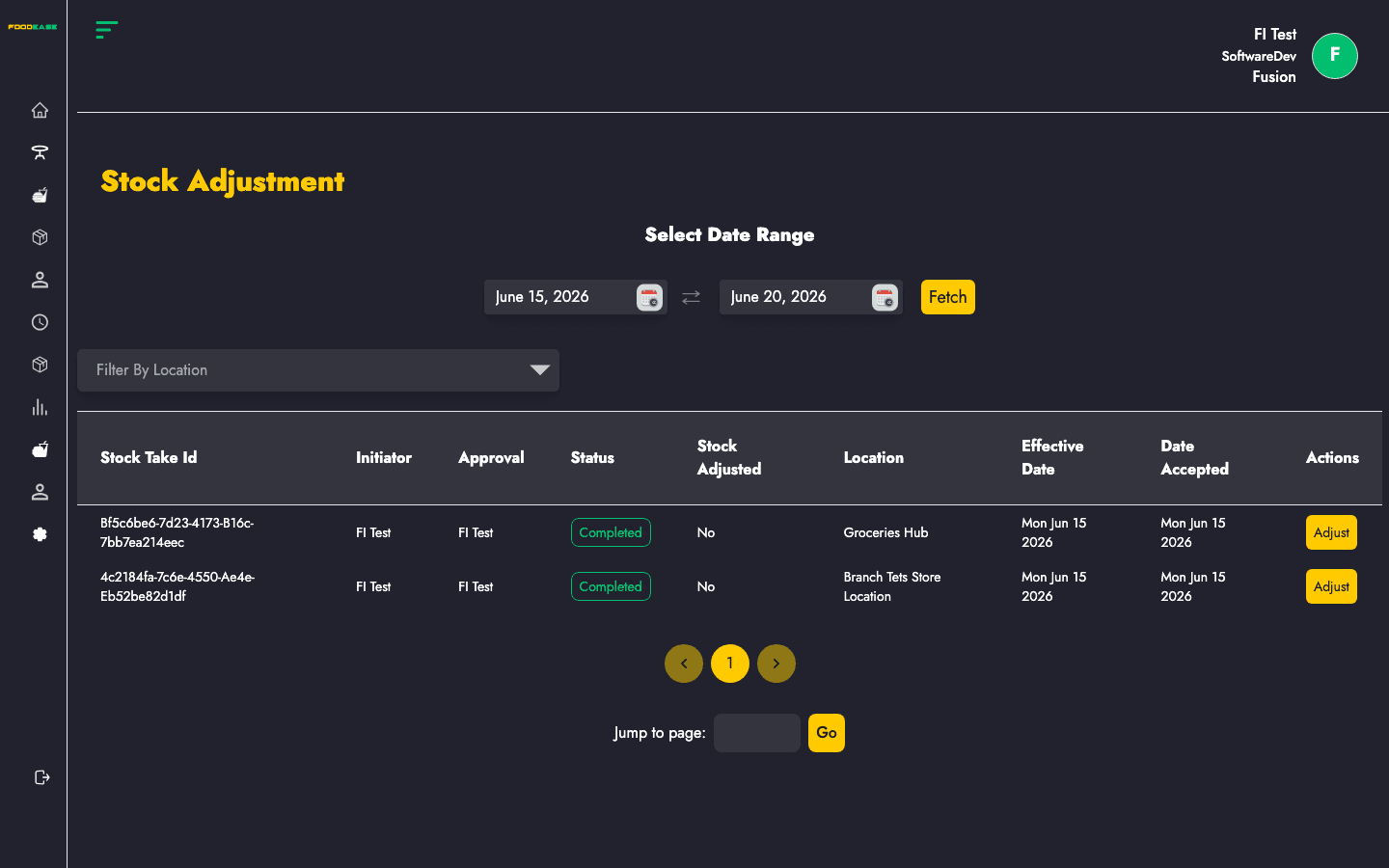
Stock Adjustment posts variances from approved End of Month Inventory (stock take) sessions. Completed stock takes that have not yet been adjusted show an Adjust action; applying adjustment updates stock to match counted quantities.
Who can use this page?
Users need Edit Stock Take permission.
How to open Stock Adjustment
- Log in to FoodEase Office.
- Sidebar → Inventory → Stock Adjustment.
Page overview
| Column | Description |
|--------|-------------|
| Stock Take Id | Linked stock take reference |
| Initiator | Staff who performed the count |
| Approval | Approver information |
| Status | Stock take status |
| Stock Adjusted | Yes/No — whether adjustment was applied |
| Location | Store location |
| Effective Date | Count effective date |
| Date Accepted | When the stock take was accepted |
| Actions | Adjust or View |
| Filter / tool | Description |
|---------------|-------------|
| Date range | Load stock takes within a period |
| Location | Filter by store location (shown when multiple records exist) |
Apply a stock adjustment
- Select a date range to load completed stock takes.
- Find a row where Status is Completed and Stock Adjusted is No.
- Click Adjust.
- In the confirmation modal, enter a Reason for the adjustment (required).
- Confirm — FoodEase creates the adjustment and marks the stock take as adjusted.
If no reason is entered, the adjustment is blocked with an error notification.
View an adjusted stock take
Rows already adjusted, or non-adjustable statuses, show View instead of Adjust. Open /dashboard/stocks/view-stock-adjustment/{id} to review details.
Search and filter
- Use date range to focus on a closing period.
- Filter by Location when managing multi-site operations.
Best practices
- Only adjust Completed stock takes that have been reviewed and approved.
- Enter a clear Reason (e.g. Month-end count variance — spillage) for audit trails.
- Run End of Month Inventory before adjustments; do not skip the count step.
- Verify results in Stock Movement Log and Stock Ledgers.