
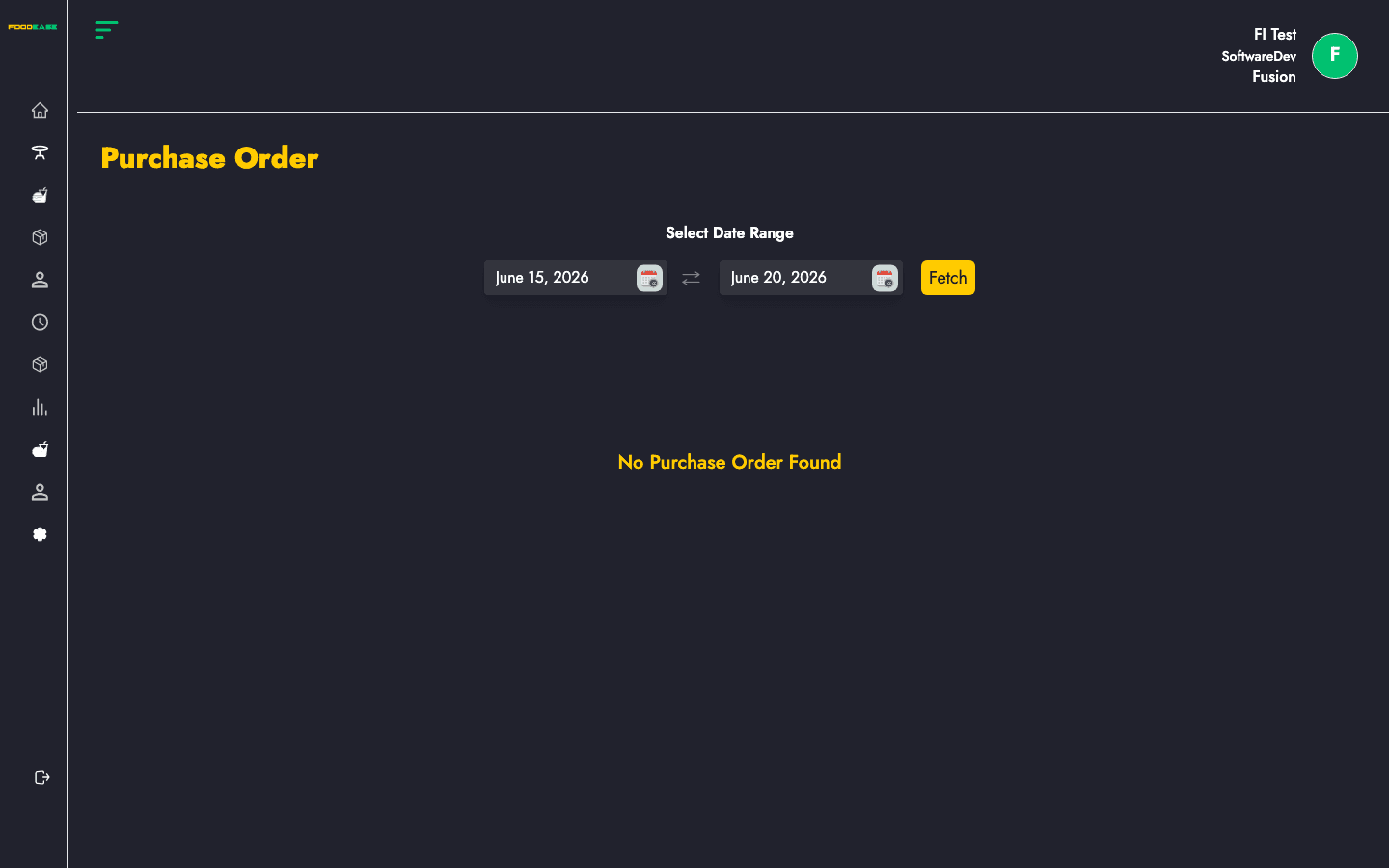
Purchase Orders confirm what will be bought from a vendor after a requisition is approved. Each order links back to its requisition and tracks confirmation date, vendor, location, and status through to Stock Receipt.
Who can use this page?
Users need Edit Purchase Order permission.
How to open Purchase Order
- Log in to FoodEase Office.
- Sidebar → Inventory → Purchase Order.
Page overview
| Column | Description |
|--------|-------------|
| Order Id | Purchase order reference (click to view) |
| Requisition Id | Linked stock request (click to open requisition) |
| Confirmation Date | Date the order was confirmed |
| Vendor | Supplier for this order |
| Requested By | Staff who originally requested stock |
| Location | Delivery store location |
| Status | Workflow state (e.g. Draft, Completed) |
| Actions | View or edit depending on status |
| Filter / tool | Description |
|---------------|-------------|
| Date range | Load orders within a period |
| Generate PDF | Print the list |
| Export | Download as Excel |
There is no Create button on this page — purchase orders are generated from the requisition workflow.
View a purchase order
- Select a date range to load orders.
- Click an Order Id or open Actions → view.
- On the detail page (
/dashboard/stocks/view-purchaseOrder/{id}), review line items, vendor, and linked requisition.
Edit a draft purchase order
- Find an order with status Draft.
- Open Actions — you are routed to
/dashboard/stocks/edit-purchaseOrder/{id}. - Update order details and save.
Completed or non-draft orders open the view screen only.
Search and export
- Use the date range picker to focus on a billing or delivery period.
- Click Generate PDF or Export after data is loaded to share with finance or vendors.
Best practices
- Resolve requisition issues before confirming purchase orders — each order ties to a Requisition Id.
- Keep Vendors up to date so PO exports show correct supplier details.
- After a PO reaches Completed status, create a Stock Receipt to record goods received.