
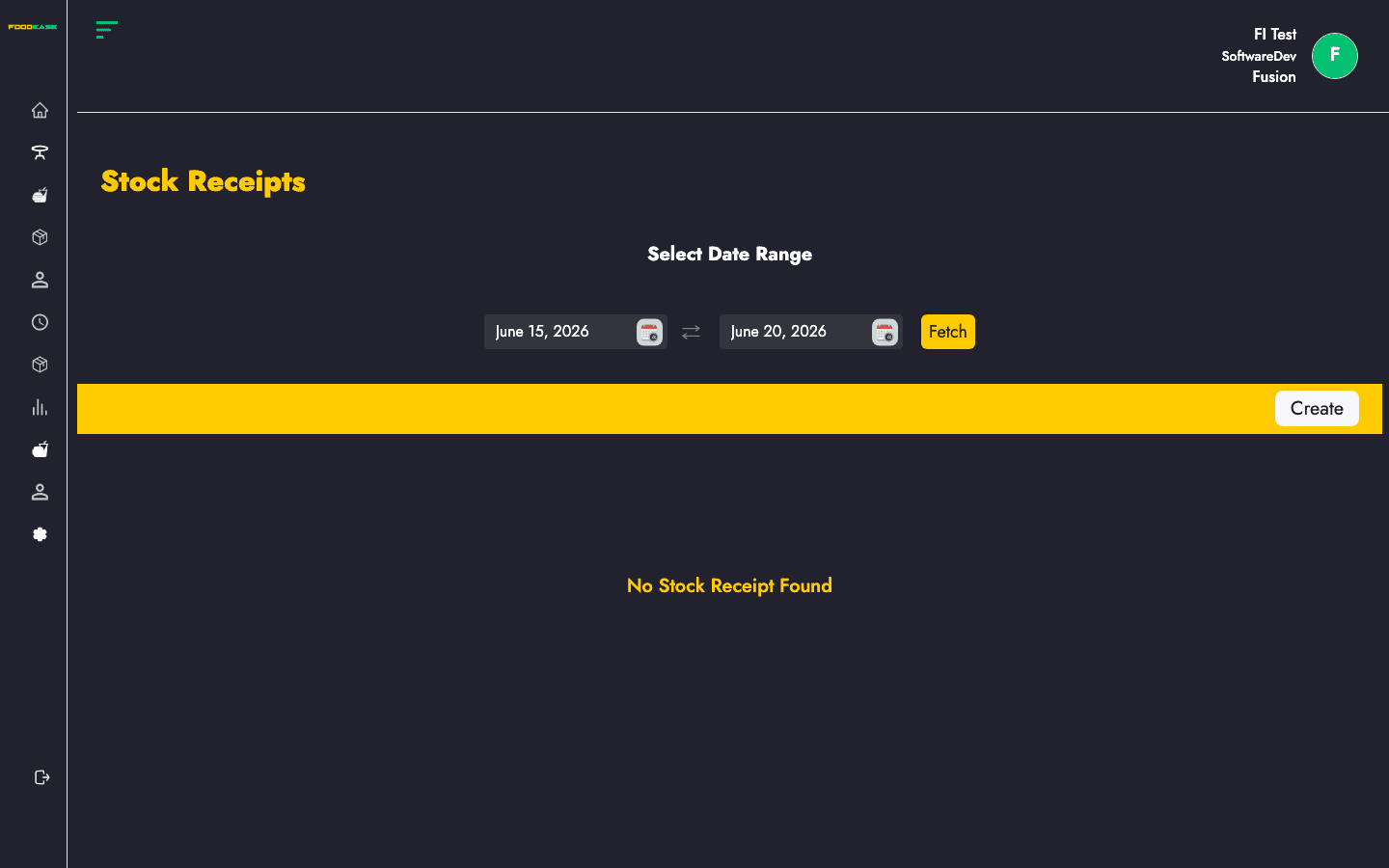
Stock Receipts document inventory received from vendors. Receipts can be linked to completed purchase orders and go through create, edit, and approval steps before stock levels update.
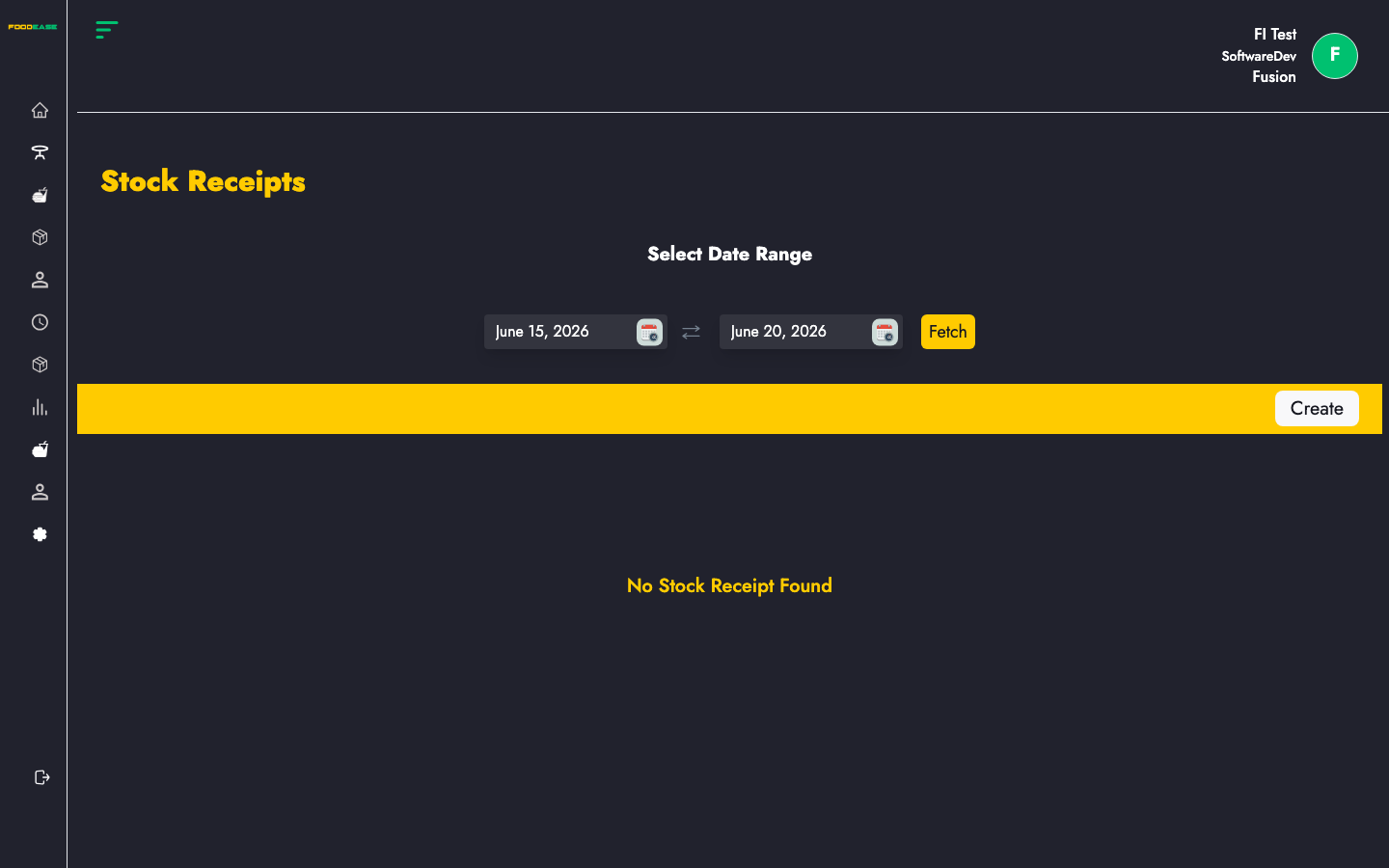
Who can use this page?
Users need at least one of:
- Create Stock Receipt
- Approve Stock Receipt
- Approve Own Receipt
How to open Stock Receipt
- Log in to FoodEase Office.
- Sidebar → Inventory → Stock Receipt.
Page overview
| Column | Description |
|--------|-------------|
| Receipt Id | Receipt reference (click to view) |
| Purchase Order Id | Linked PO (if applicable) |
| Requisition Id | Original stock request |
| Receipt Amount | Total value of the receipt |
| Date Created | When the receipt was created |
| Invoice Date | Supplier invoice date |
| Received By | Staff who recorded receipt |
| Vendor | Supplier name |
| Delivery Location | Store location receiving goods |
| Status | Workflow state |
| Actions | View or edit |
| Filter / tool | Description |
|---------------|-------------|
| Date range | Load receipts for a period |
| Vendor | Filter list by supplier |
| Location | Filter by delivery location |
| Generate PDF | Print the list |
| Export | Download as Excel |
| Create | Start a new receipt |
Create a stock receipt
- Click Create (requires Create Stock Receipt).
- You are taken to
/dashboard/stocks/create-stock-receipts. - Select a completed purchase order (or follow the external receipt flow if applicable).
- Enter receipt details:
| Field | Description |
|-------|-------------|
| Invoice Date | Date on the supplier invoice |
| Line items | Quantities and costs received per item |
| Invoice image / PDF | Optional supporting documents |
- Save as draft or submit for approval depending on the form actions available.
Receipt lines are pre-filled from the selected purchase order where possible.
Edit or approve a receipt
- Draft receipts open the edit screen (
/dashboard/stocks/edit-stockReceipt/{id}). - Submitted receipts open the view page (
/dashboard/stocks/view-stockReceipt/{id}) where approvers can Approve or Reject (requires Approve Stock Receipt or Approve Own Receipt as configured).
Search and filter
- Set a date range to load receipts.
- Filter by Vendor or Delivery Location using the dropdowns at the top (when data is loaded).
- Use Export or Generate PDF for reporting.
Best practices
- Match Invoice Date and amounts to the supplier invoice before approval.
- Attach invoice PDFs or images when your process requires audit trails.
- Complete Purchase Orders before creating receipts against them.
- Review Stock Ledgers after approval to confirm quantities posted.