
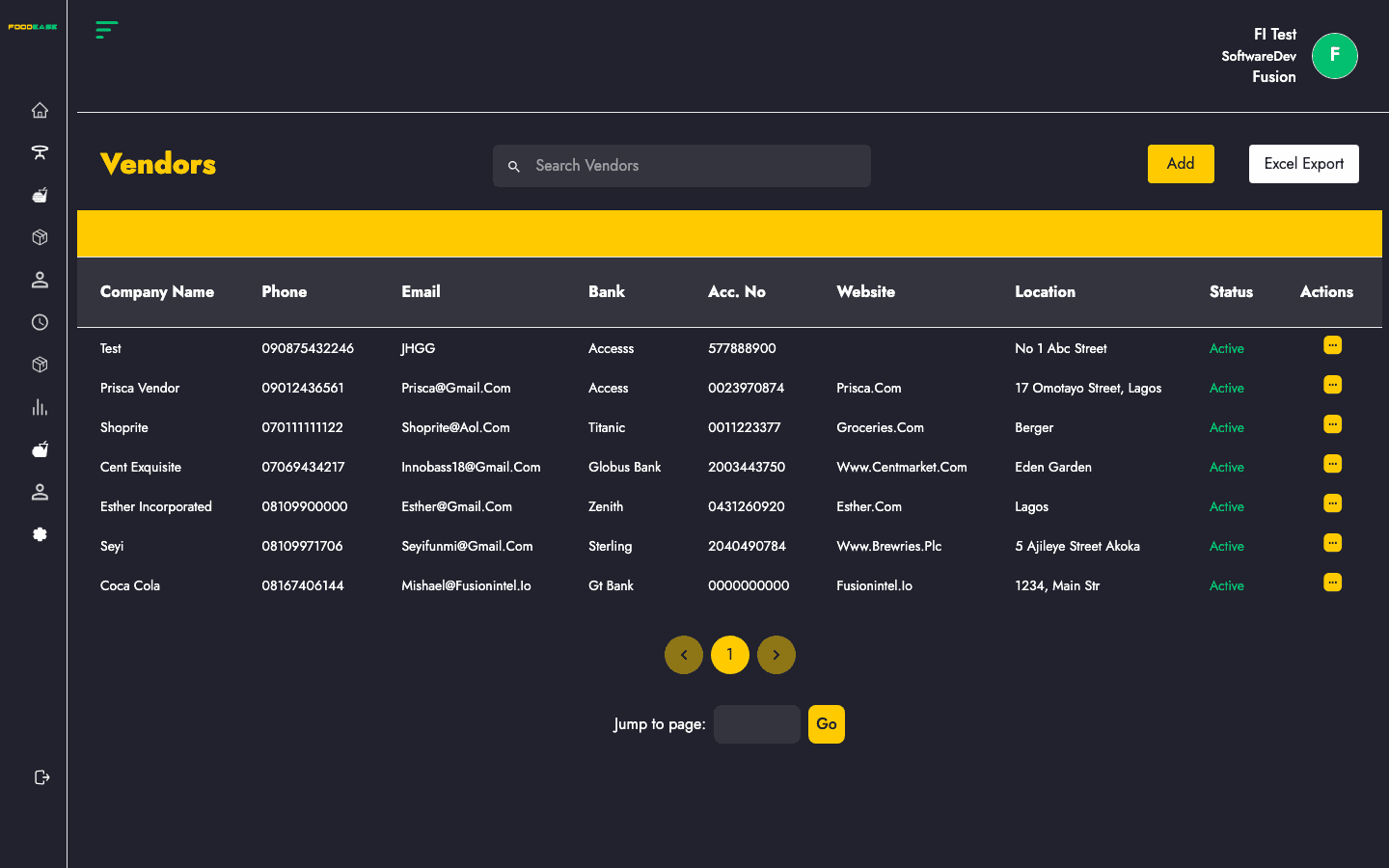
Vendors are your suppliers. Maintain company details, banking information, compliance documents, and linked stock items so Requisitions and Purchase Orders reference the correct supplier.
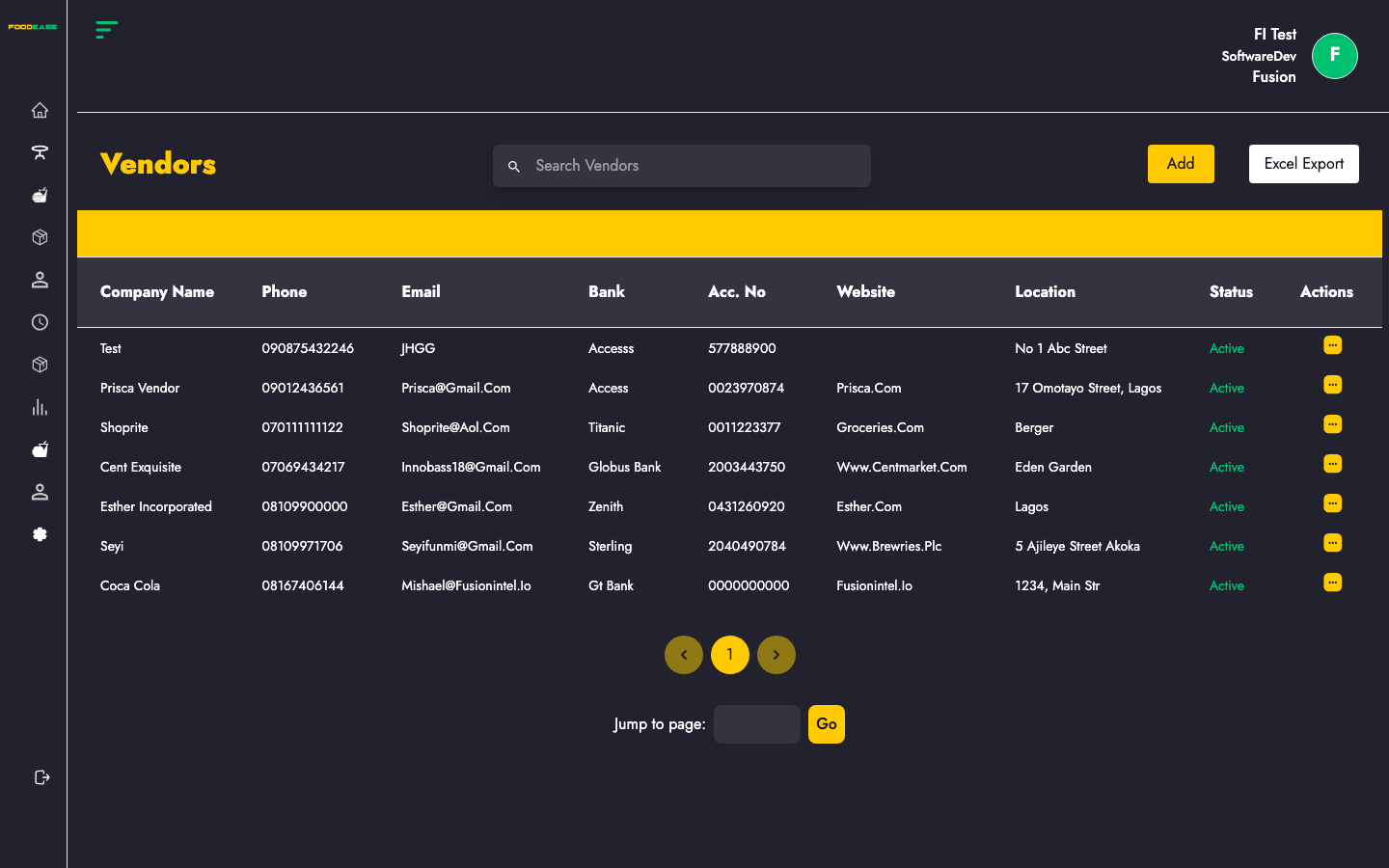
Who can use this page?
Users need at least one of:
- Create Vendor
- Edit Vendor
How to open Vendors
- Log in to FoodEase Office.
- Sidebar → Inventory → Vendors.
Page overview
| Column | Description |
|--------|-------------|
| Company Name | Vendor business name |
| Phone | Primary phone number |
| Email | Contact email |
| Bank | Bank name |
| Acc. No | Account number |
| Website | Vendor website |
| Location | Vendor address summary |
| Status | Active or Inactive |
| Actions | Edit or toggle status |
| Tool | Description |
|------|-------------|
| Search Vendors | Filter list by company name |
| Add | Create a new vendor |
| Export | Download vendor list as Excel |
Create a vendor
- Click Add →
/dashboard/stocks/create-vendor. - Complete required fields:
| Field | Description |
|-------|-------------|
| Name | Company name |
| Address | Vendor address |
| Email | Primary email |
| Purpose | Reason for engagement |
| Bank / Account Number | Payment details |
| Phone Number | Primary contact (min. 11 digits) |
| Secondary Contact | Alternate phone |
| CAC Registration Number | Company registration |
| Tax Identification Number | Tax ID |
| Product Categories | Categories supplied (multi-select) |
| Store Locations | Locations this vendor serves |
| Items | Stock items supplied (via item picker) |
- Optionally upload NAFDAC, CAC, or menu list PDFs.
- Save — you return to the Vendors list with a success notification.
Edit a vendor
- Open Actions → Edit on a row.
- Update details on
/dashboard/stocks/edit-vendor/{id}. - Save changes.
Activate or deactivate
Use Actions → Toggle to activate or deactivate a vendor. Inactive vendors remain in history but should not be selected for new orders.
Search and export
- Type in Search Vendors to filter by name (client-side filter).
- Click Export to download the current list as Vendor List Excel.
Best practices
- Link Items on the vendor record to speed up requisition and receipt matching.
- Keep Bank and Account Number accurate for accounts payable.
- Upload compliance PDFs where your operation requires supplier verification.
- Deactivate vendors you no longer use instead of deleting historical links.